
Search for answers or browse our knowledge base.
Programming – LNK-300K with FlexIO (PC Version)
What’s included in the LNK-300K kit:
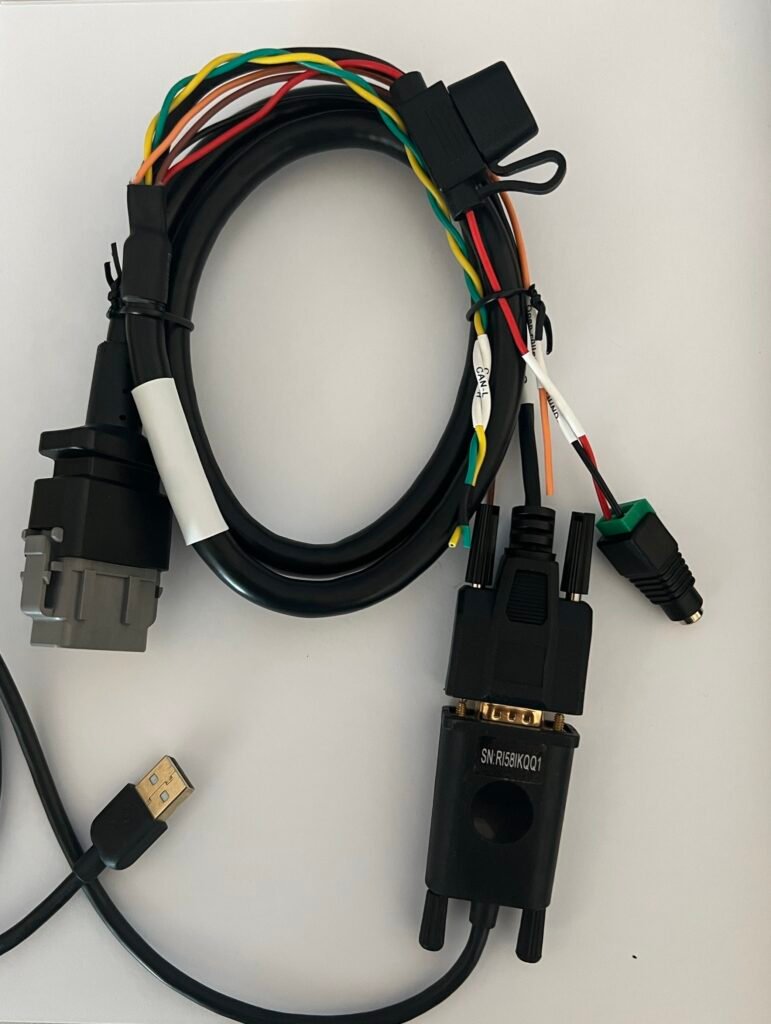
1 – LNK-202PD Link Cable
1 – JMP400D Cable (DB9 (RS232) to USB A)
1 – LNK-290K 12v Battery Pack + 12v Barrel connector (Should be installed on LNK-202PD)
Setting up the LNK-300K
Step 1) Locate your Gateway, Gateway Lite, or Universal Repeater. Disconnect the Link cable from Gateway, Gateway Lite, or Universal Repeater.
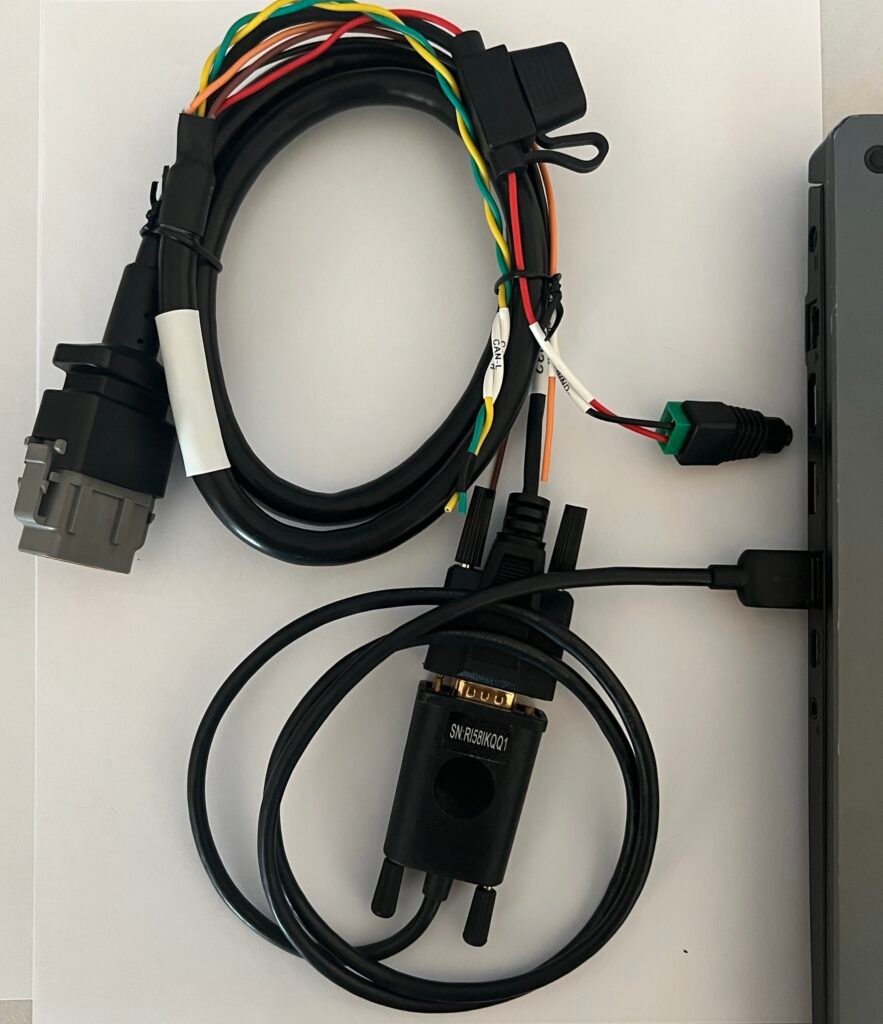
Step 2) Locate the JMP-400D (DB9 (RS232) to USB A) cable. Connect the DB9 (RS232) connector to the DB9 connector on the Link (LNK-202PD). Using the USB A connector on the JMP-400D, connect it to your laptop.
Step 3) Using the 12-pin connector on the programing Link (LNK-202PD) cable, connect it to the Gateway, Gateway Lite, or Universal Repeater. 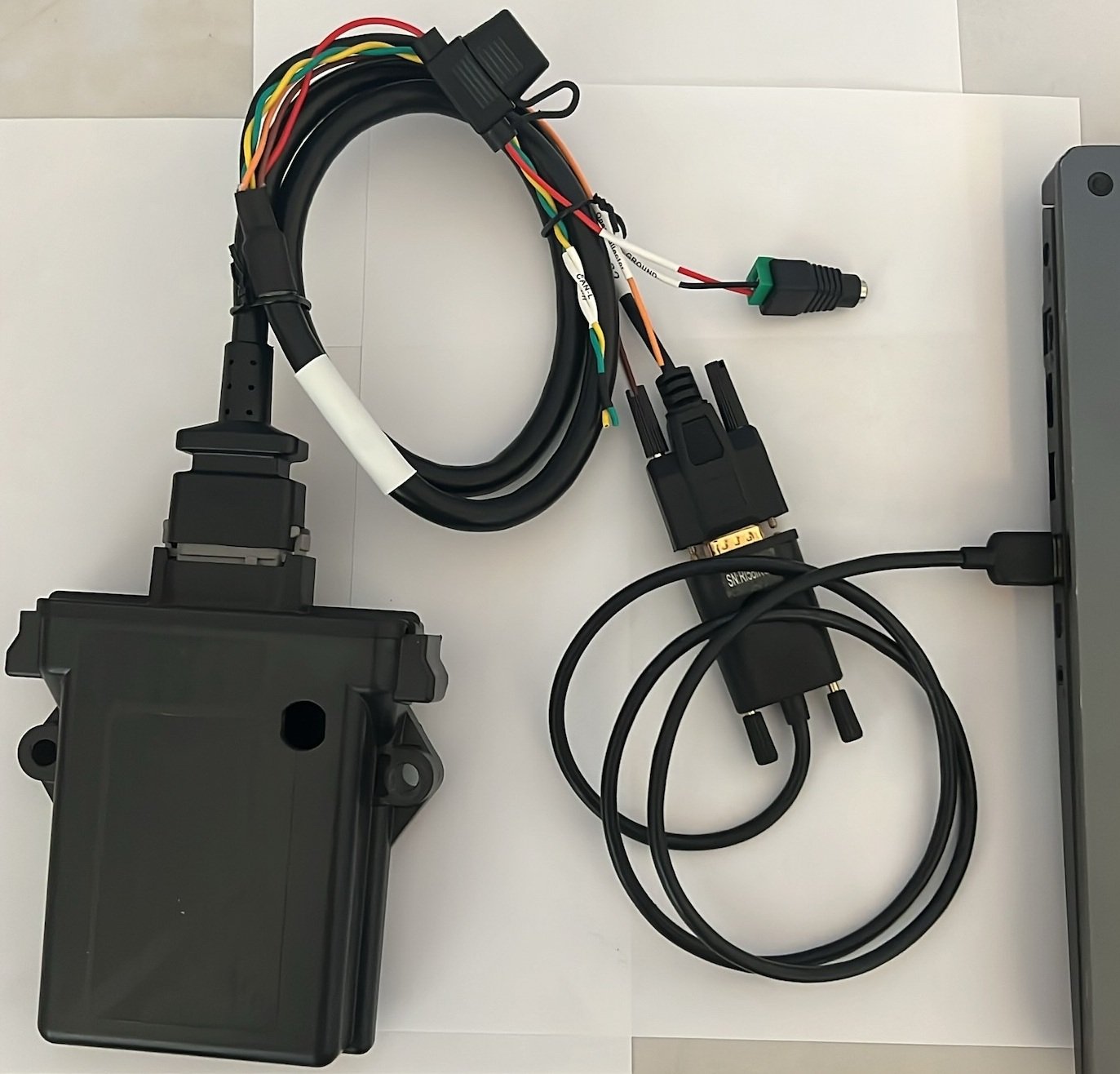
Step 4) On the Link cable (LNK-202PD), there’s a 12v female barrel connector already attached for power. Connect it to the battery pack using the pigtail provided with the power pack. Make sure the power switch is in the on position. Please Note: The pigtail will have 2 male connectors and 1 female connector. Connect the 12 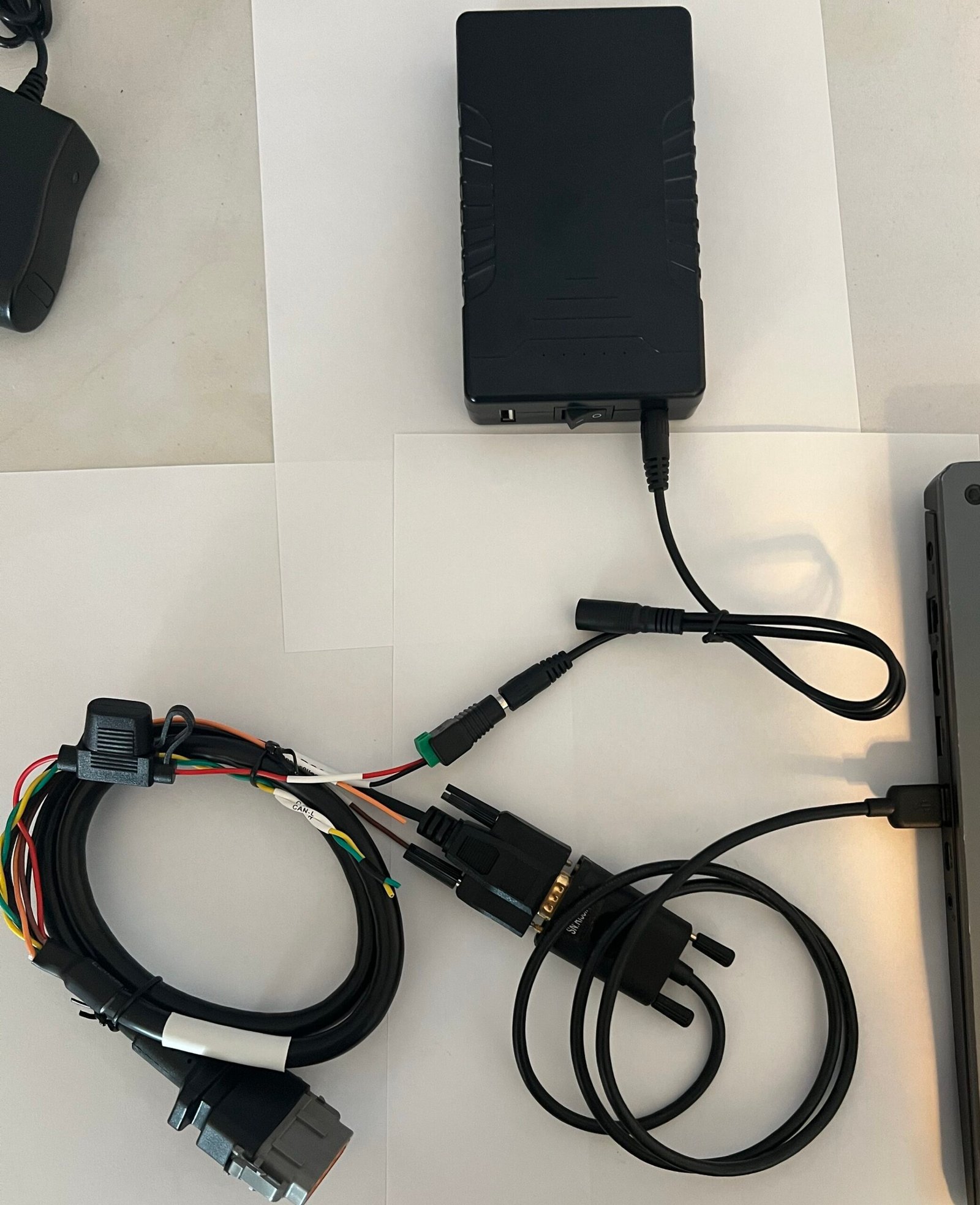
We’re ready to program the Gateway, Gateway Lite, or Universal Repeater.
FlexIO Programing
Step 1: Download PressurePro’s FLEX/IO Program Application.
FlexIO V4.1 Download Here
Open the downloaded zip folder and save the full ‘FlexIO Programmer’ folder to your desktop.
Step 2: Verify COM Port
In your computer’s search bar, search for and open ‘Device Manager’. Once in Device Manager, select ‘Ports’. Locate Port named either ‘Prolific’ or ‘USB Serial Port’ (which denotes the correct Port to select).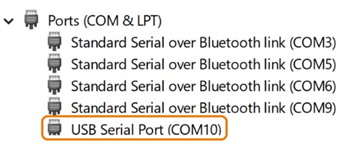
Step 3: Open FlexIO Programmer Application.
Double click on ‘FlexIO Programmer’ folder and open the FlexIO_Programmer.exe (has a black icon and the file type of ‘Application’).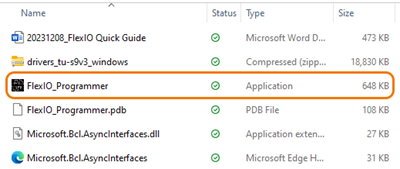
Step 4: Select Appropriate COM port and Activate Backup.
Select appropriate COM port from listing and click ‘Open Port’ button. Then click the Activate/Backup button. After Activation, LINK device data table and settings will automatically populate.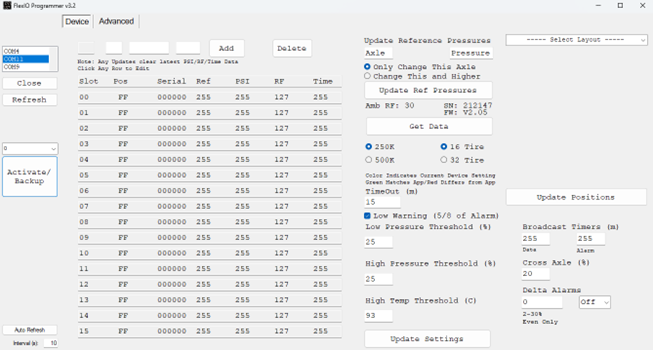
Step 5: Programing Sensors:
To program sensors, select the first row from the data table by clicking on the row/slot. When selected, you’ll see the values in the text fields above the data table. You’ll input the POS, Serial Number for the Sensor, and Reference Pressure.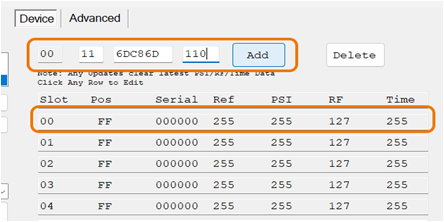
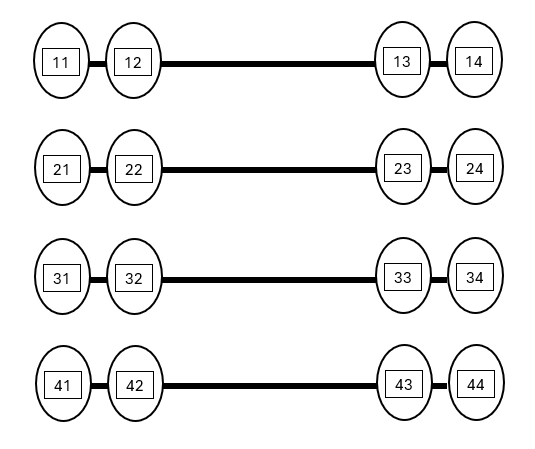
Please Note: The POS field is the position of the sensor and where it corresponds to the vehicle layout. Each POS will have 2 digits. You can think of the 1st digit as the Axle Number and the 2nd digit as the Tire Number. Our system always starts with the most forward axle/tire, and moves left to right, front to back. Example of your layout inputted into FlexIO is below.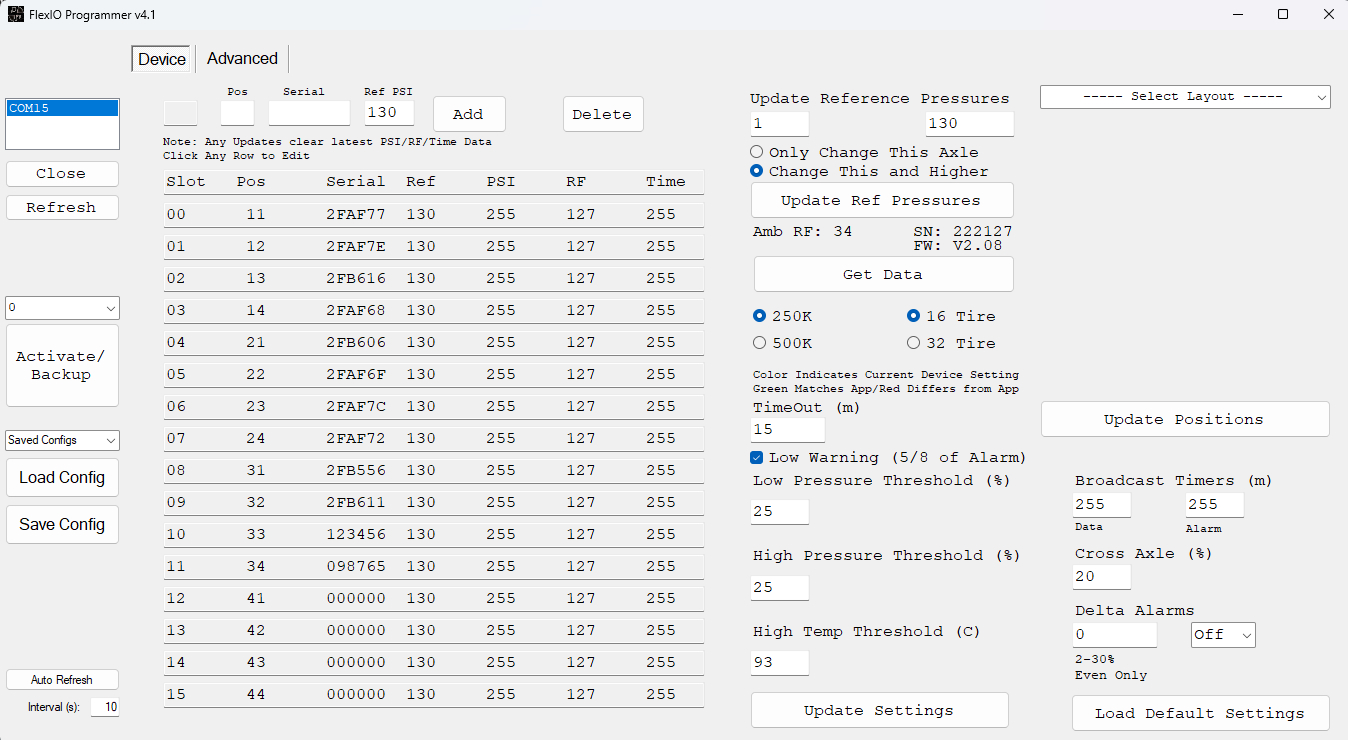
Once Sensor data is entered, click ‘Add’ button to save. Repeat sensor programming steps for each location/sensor. Once finished inputting the Sensors, the unit is programed. To verify programing, you can close out of FlexIO and reopen. When you Activate the unit, the programmed data will appear within the data table.
Sensor Position Layout
Settings Overview:
The FlexIO Programmer offers users the ability to make changes to settings on your LINK device.
To the right of the sensor data table, you’ll notice several customizable settings that allow you to change reference pressures, LINK baud rate, alert settings and more.
Any setting listed can be changed by selecting (or typing in) the desired setting then pressing ‘Update Settings’ button.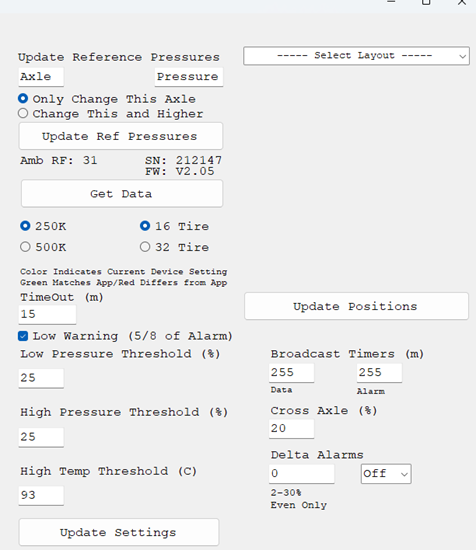
Settings Update Overview:
Reference Pressure: Type desired pressure in the Axle number & desired pressure. Click ‘Update Ref Pressures’ button to lock in updated settings.
Baud Rate: Select the desired Baud Rate. Click ‘Update Ref Pressures’ button to lock in updated settings.
Tires: Select the desired number of tires. Click ‘Update Ref Pressures’ button to lock in updated settings.
Alert Settings: Input the desired alarm settings (including low, high and high temp and cross axle thresholds and toggling on and off delta alarm). Click ‘Update Ref Pressures’ button to lock in updated settings.