
Search for answers or browse our knowledge base.
Integration – How to Use FlexIO on PC
In this article we’ll go over how to use FlexIO to program Gateways, Gateway Lites, & Universal Repeaters.
Step 1: While connected to internet, connect your programming cable (JMP-400D A, RS232 to USB A jumper, or JMP-401D C, RS232 to USB C jumper, to computer.
Step 2: Download PressurePro’s FLEX/IO Program Application. Visit http://pressurepro.us/FlexIO and click ‘Download Here’ to download the zipped Flex I/O application folder.
FlexIO V4.1 Download Here
Open the downloaded zip folder and save the full ‘FlexIO Programmer’ folder to your desktop. (To extract the files, you’ll right click on the zip folder, then select “Extract All”. You’ll be asked to select a file destination for the extracted files.)
Step 3: Verify COM Port
In your computer’s search bar, search for and open ‘Device Manager’. Once in device manager, select ‘Ports’. Locate Port named either ‘Prolific’ or ‘USB Serial Port’ (which denotes the correct Port to select).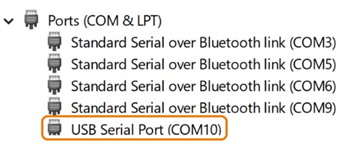
Step 4: Open FlexIO Programmer Application.
Double click on ‘FlexIO Programmer’ folder and open the FlexIO_Programmer.exe (has a black icon and the file type of ‘Application’).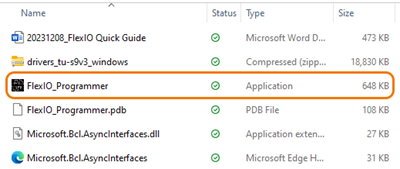
Step 5: Go to vehicle/unit and power LINK Device.
Step 6: Select Appropriate COM port and Activate Backup.
Select appropriate COM port from listing and click ‘Open Port’ button. LINK information will auto populate. Click Activate/Backup button.
Note* When programming for a tractor or trailer-only install, select ‘0’ from the drop-down menu directly above Activate/Backup button. For programming of trailers in drop-and-hook installations, select ‘1’ from the drop-down menu.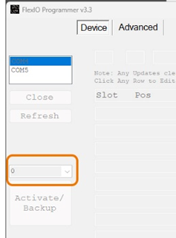
After Activation, LINK device data table and settings will automatically populate.
Step 7: Select you Vehicle/Unit Layout and Program Sensors:
Select your appropriate vehicle/unit layout from the ‘Select Layout’ dropdown on the top, right hand side of your FlexIO Programmer Application and click ‘Update Settings’ button. Note* If your appropriate layout isn’t selectable, you can manually enter positions. Please reference sensor position numbering table below.
To program sensors, select a sensor to program from the data matrix trable by clicking on the row/slot. When a sensor is selected, edit the sensor values (including position, serial number and reference pressure) in the text fields above the data table. Once Sensor data is entered, click ‘Add’ button. Repeat sensor programming steps for each location/sensor.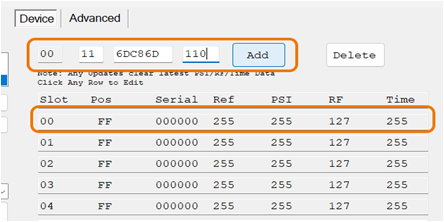
Sensor Position Layout Example
Your driver’s side, front wheel will always be the layout starting point. If the axle only as 2 wheels, the furthest right wheel must end with a 4 (as pictured below). The first number of as the axle, the second number will be the sensor position.
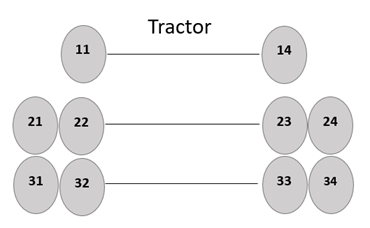
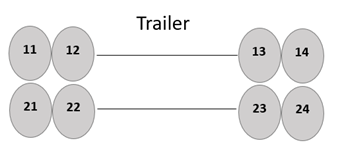
If you opted to have your sensors pre-programmed, please see layout chart sent with your programmed units. Note: Your sensors will be labeled with position number stickers.
Settings Overview:
The FlexIO Programmer offers users the ability to make changes to settings on your LINK device.
To the right of the sensor data table, you’ll notice several customizable settings that allow you to change reference pressures, LINK baud rate, alert settings and more.
Any setting listed can be changed by selecting (or typing in) the desired setting then pressing ‘Update Settings’ button.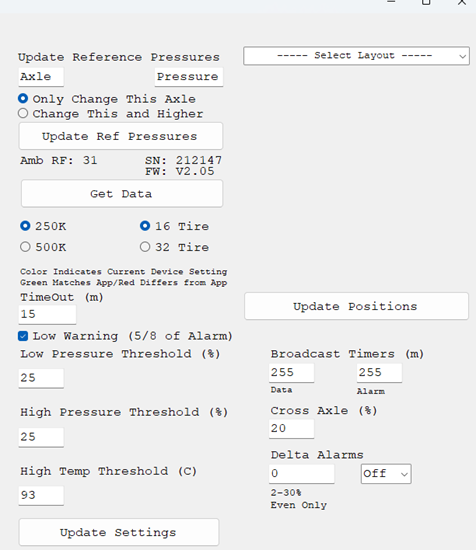
Settings Update Overview:
Reference Pressure: Type desired pressure in the Axle number & desired pressure. Click ‘Update Ref Pressures’ button to lock in updated settings.
Baud Rate: Select the desired Baud Rate. Click ‘Update Ref Pressures’ button to lock in updated settings.
Tires: Select the desired number of tires. Click ‘Update Ref Pressures’ button to lock in updated settings.
Alert Settings: Input the desired alarm settings (including low, high and high temp and cross axle thresholds and toggling on and off delta alarm). Click ‘Update Ref Pressures’ button to lock in updated settings.