
Search for answers or browse our knowledge base.
Connect 2.0 – How to Add a New Unit
This article will go over how to add a new Unit to Connect 2.0.
Please Note: This is subject to change.
Prerequisites: Sensor serial numbers MUST be added within the Sensors section before you can add a new Unit. Please see the Connect – How to Add New Sensors article.
Step 1) Login to Connect 2.0
Step 2) In the right menu, click on Units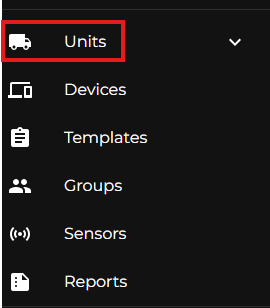
Step 3) Once in the Units section, you’ll see a list of Units already within your Company. On the top right of the list, there is a + icon. Click the + icon. 
Step 4) Next, you’ll fill out the form. Set a Name, Group and Type for the new Unit. 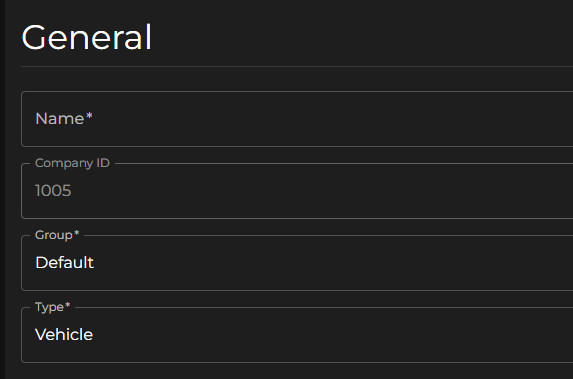
Step 5) Scroll down to the Axles & Tire section. First, you’ll select the number of axles for the vehicle. Then, next to the Axle 1, Axle 2, Axle 3, etc., there will be a Tire Count for each Axle. Set the number of tires per axle. 
Step 6) Once you set the number of tires per axle, you’ll now add the Sensor Serial Numbers and Reference Pressure. 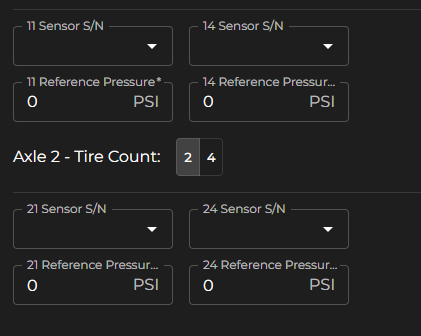
Please Note: if the Sensors have not been added under the Sensor section, the Serial Numbers will not appear in this section. Please see the Connect – How to Add New Sensors article.
Step 7) Set the desired Template. Then click the Submit button.