How can we help?
Search for answers or browse our knowledge base.
Connect 2.0 – How to Add a New Group
This article will go over how to add a new Group to Connect 2.0.
Please Note: This is subject to change.
Step 1) Login to Connect 2.0
Step 2) In the right menu, click on Group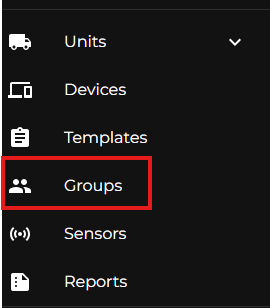
Step 3) Once in the Groups section, you’ll see a list of Groups already within your Company. On the top right of the list, there is a + icon. Click the + icon. 
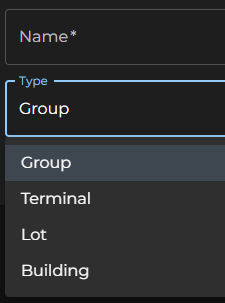
Step 4) Fill out the Name and Type fields. The Type can be set to Group, Terminal, Lot, or Building. Click the Submit button to save.