Search for answers or browse our knowledge base.
Pulse FX – Consumer TPMS – How to Adjust Alert Settings
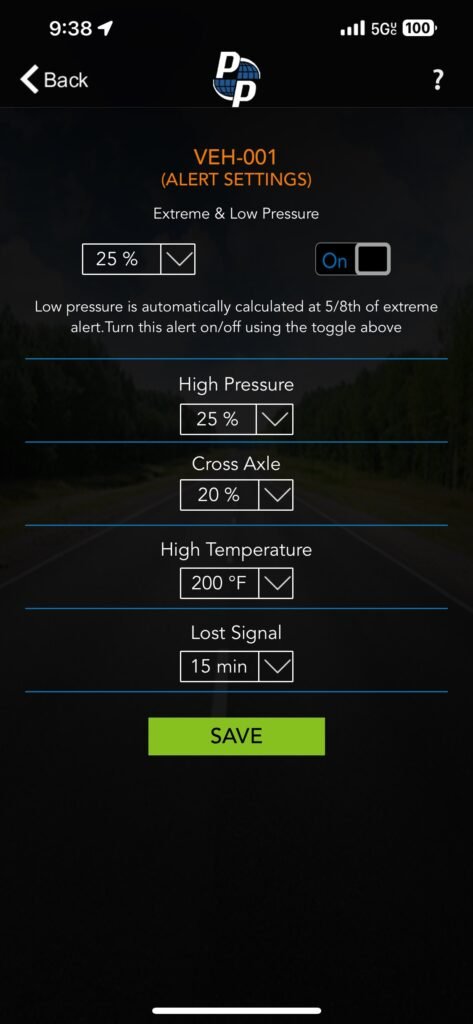
This article will guide you through how to adjust the Alert Settings. Within these settings you can adjust the parameters for Extreme & Low Pressure, High Pressure, Cross Axle, High Temperature.
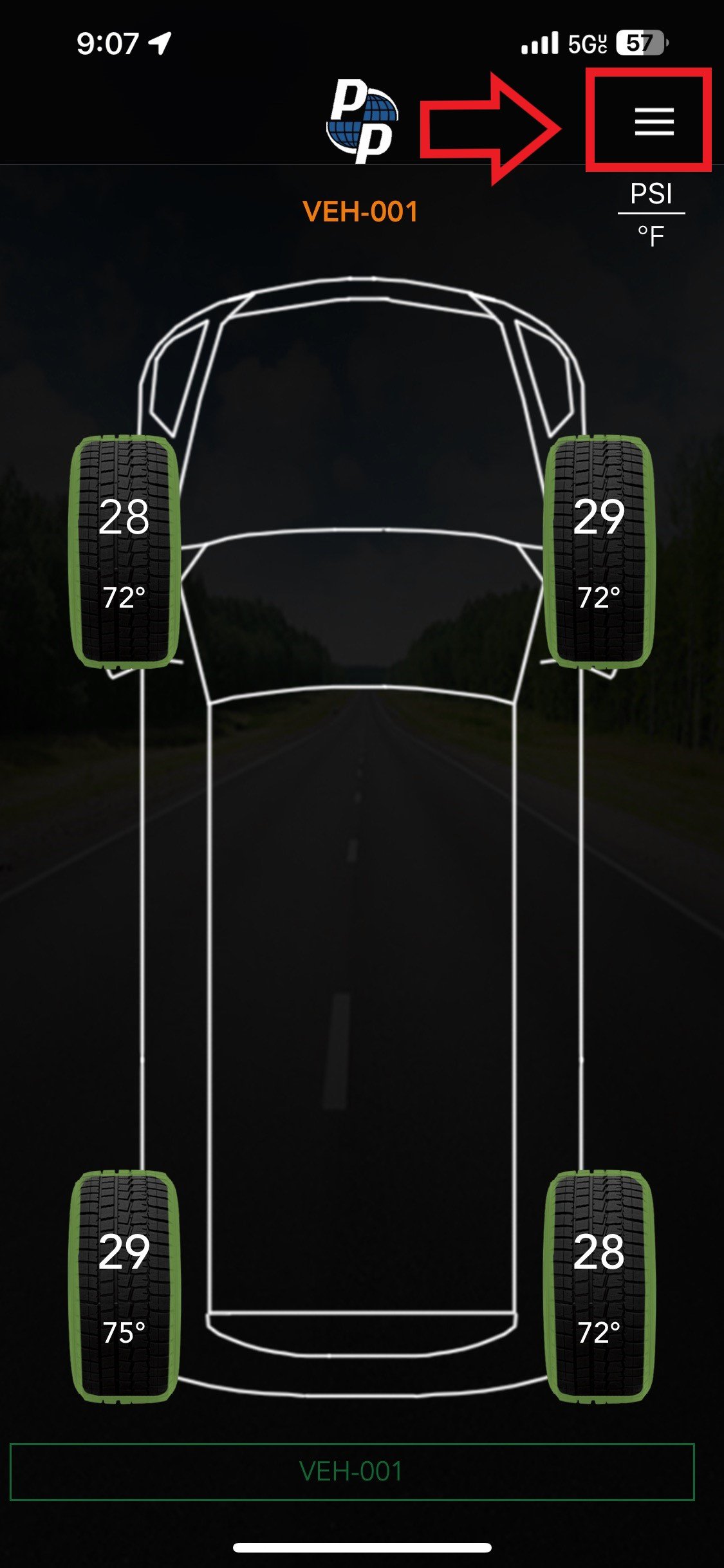
1) Open the Consumer TPMS application on your iPhone or Android device. Once open, you’ll see the layout of your vehicle.
Note: By default, the Consumer TPMS application will automatically log into your account and pair with your Pulse FX. If not, please login to your account and pair with your FX device.
2) Tap the Menu icon in the top right corner. Here you’ll see a list of menu options. Select your vehicle from the list of options.
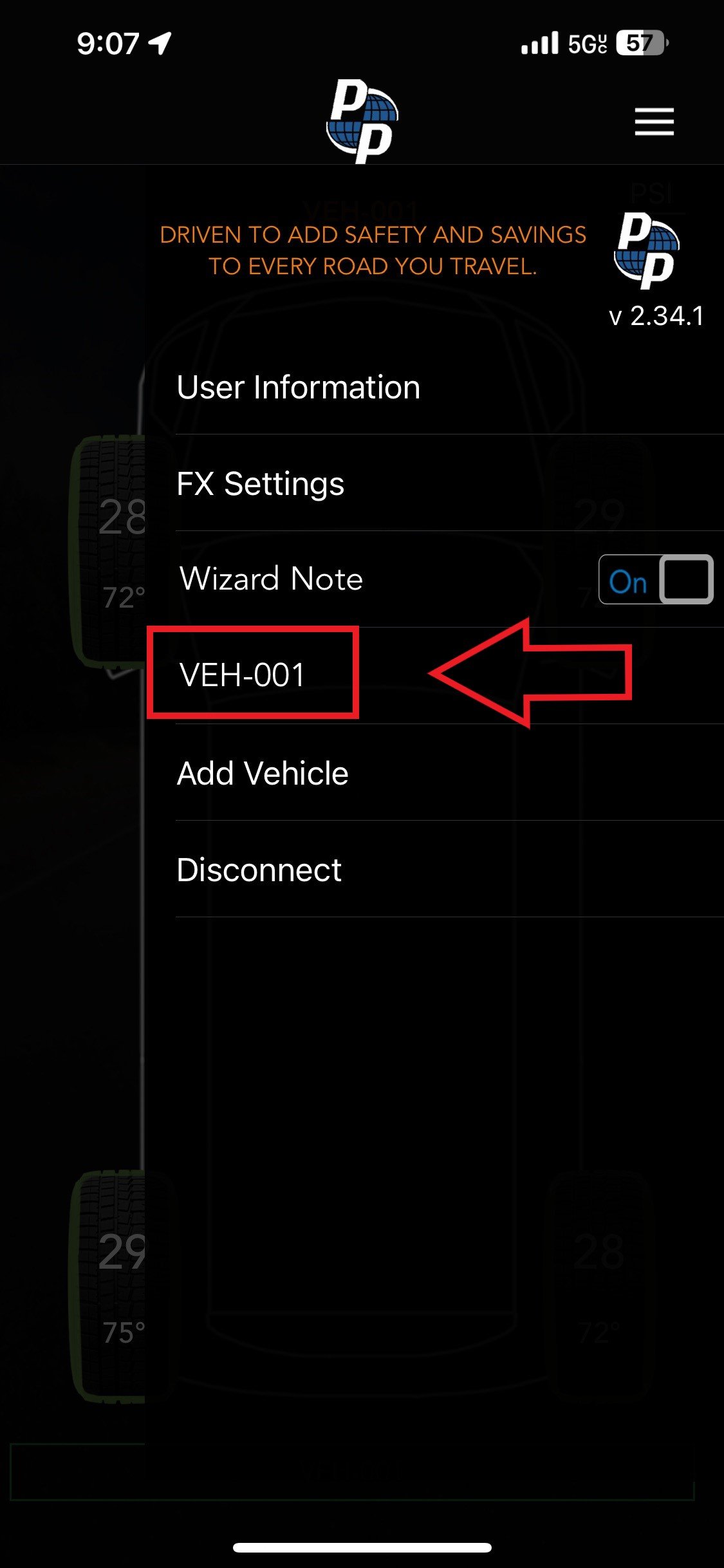
Note: VEH-001 is the default name for vehicles.
3) Once you select your vehicle, you’ll see another set of menu options. Select Alerts from the list of options.
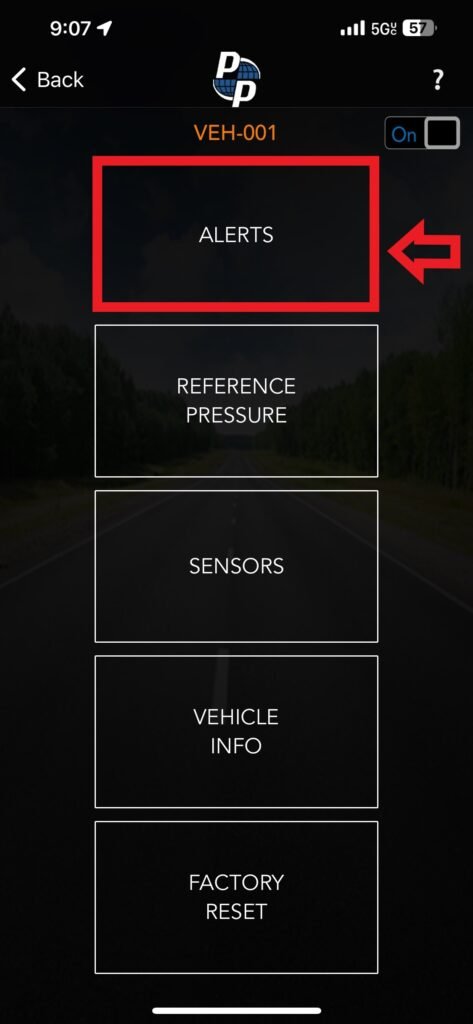
4) In the Alert Settings you can adjust the following parameters. Once finished, click the green Save button.
- Extreme & Low Pressure
- High Pressure
- Cross Axle
- High Temperature
- Lost Signal
Note: if you have not inputted the BLE password before this point, you’ll get a message stating “No admin access. To gain admin access enter BLE password. Do you want to Proceed?” after Step 4.