Search for answers or browse our knowledge base.
Pulse FX – Consumer TPMS – How to Add/Remove Vehicles
This article will guide you through what to anticipate when adding or removing vehicles from the Consumer TPMS application. It will detail the steps for creating a new vehicle and remove an existing vehicle from the application.
Note: After the first time, by default, the Consumer TPMS application will automatically log into your account and pair with your Pulse FX in the future.
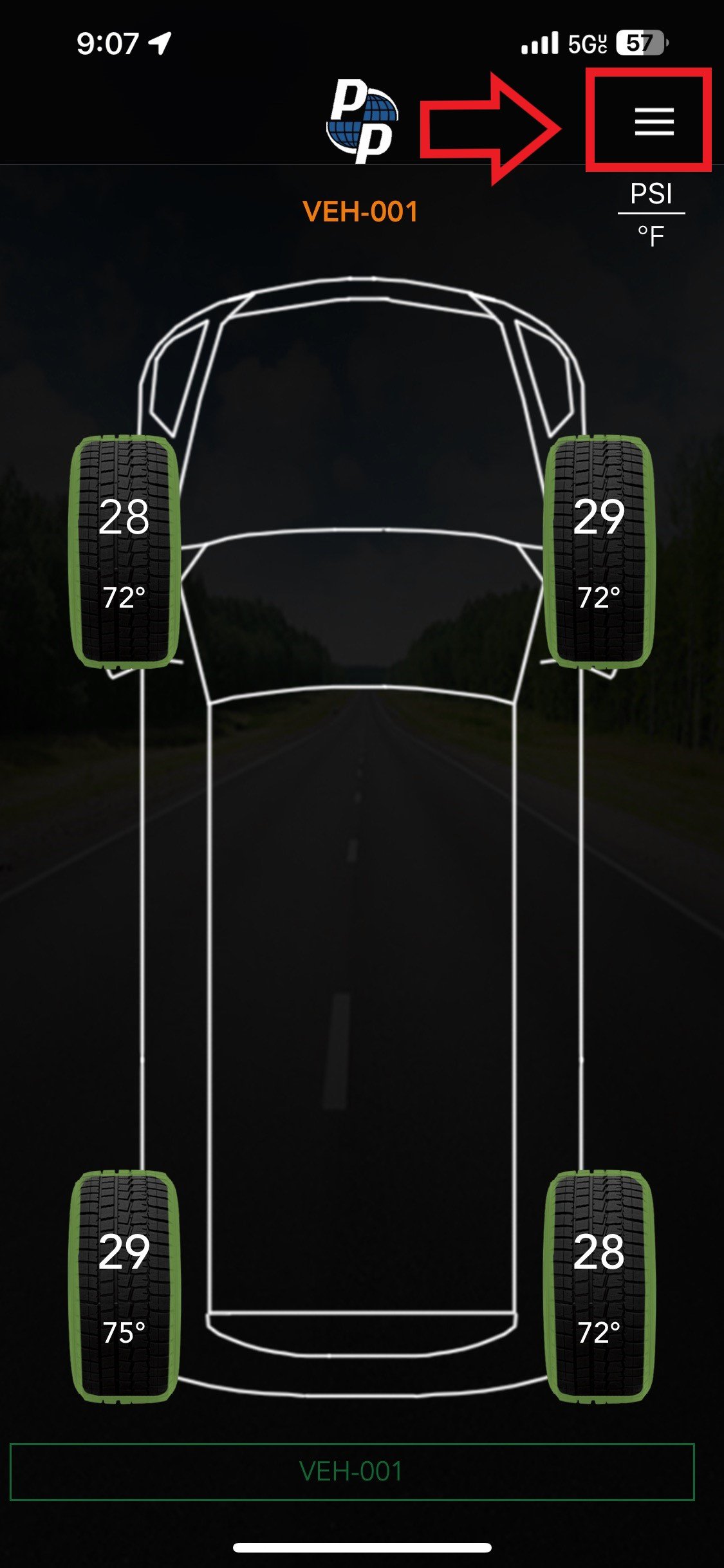
Open the Consumer TPMS application on your iPhone or Android device. Once open, you’ll see the layout of your vehicle.
Note: By default, the Consumer TPMS application will automatically log into your account and pair with your Pulse FX. If not, please login to your account and pair with your FX device. For assistance, please see the https://talk.pressurepro.us/index.php/knowledge-base/pulse-fx-consumer-tpms-creating-new-account/
How To Remove Vehicle
1) Tap the Menu icon in the top right corner. Here you’ll see a list of menu options. Select the vehicle from the list of options you wish to remove.
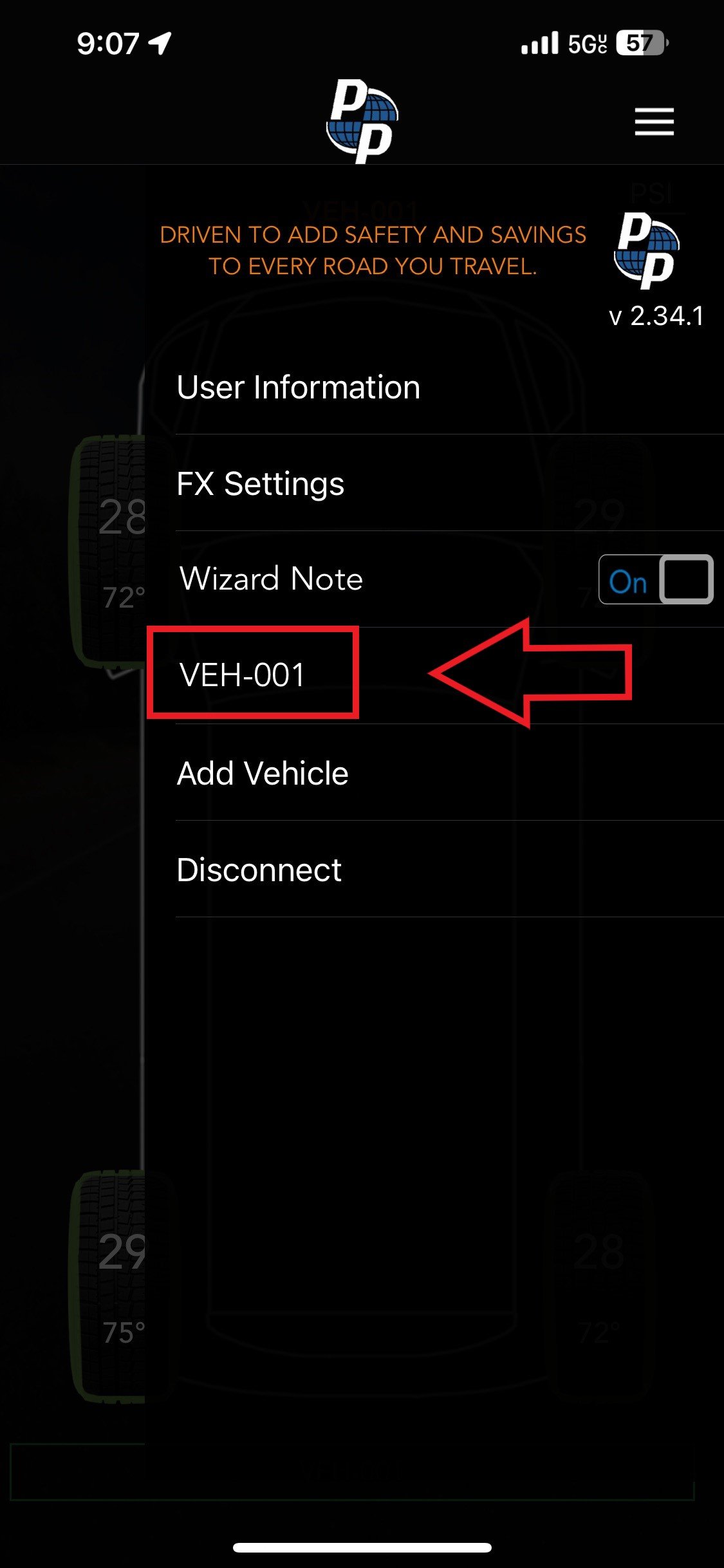
Note: VEH-001 is the default name for vehicles.
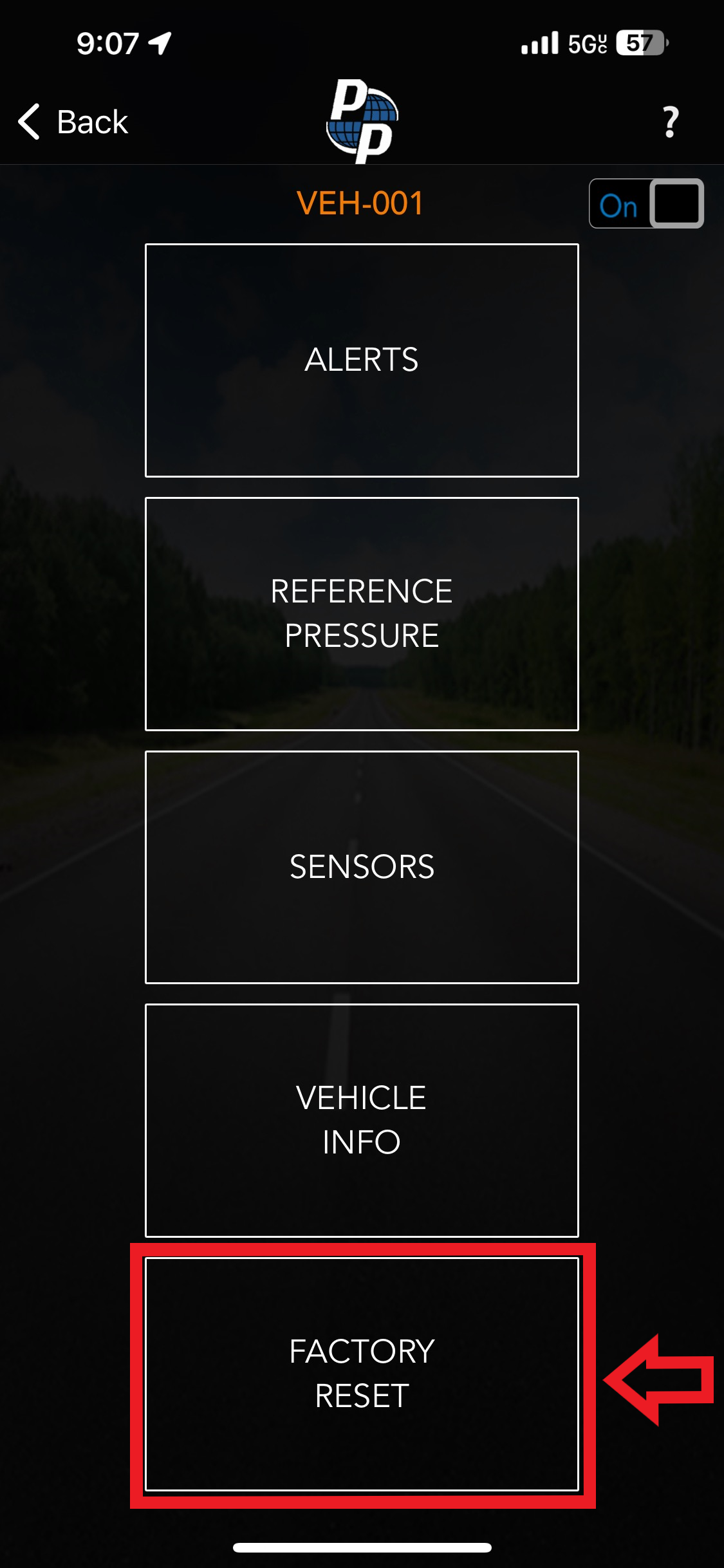
2) After selecting the vehicle, a new menu will appear. Tap Factory Reset from this menu.
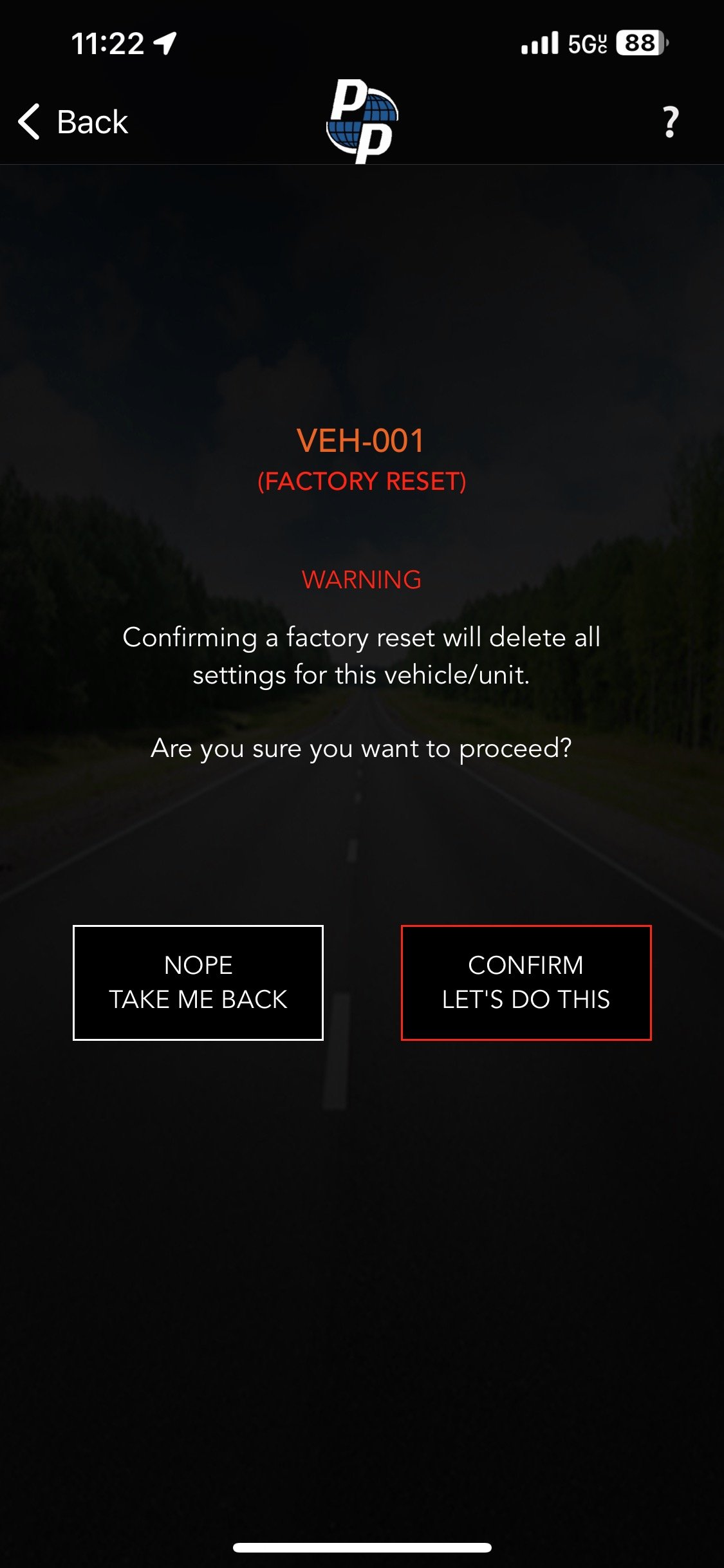
3) Within the Factory Reset section, you’ll see a red WARNING with the following:
“Confirming a factory reset will delete all settings for this vehicle/unit.
Are you sure you want to proceed? “
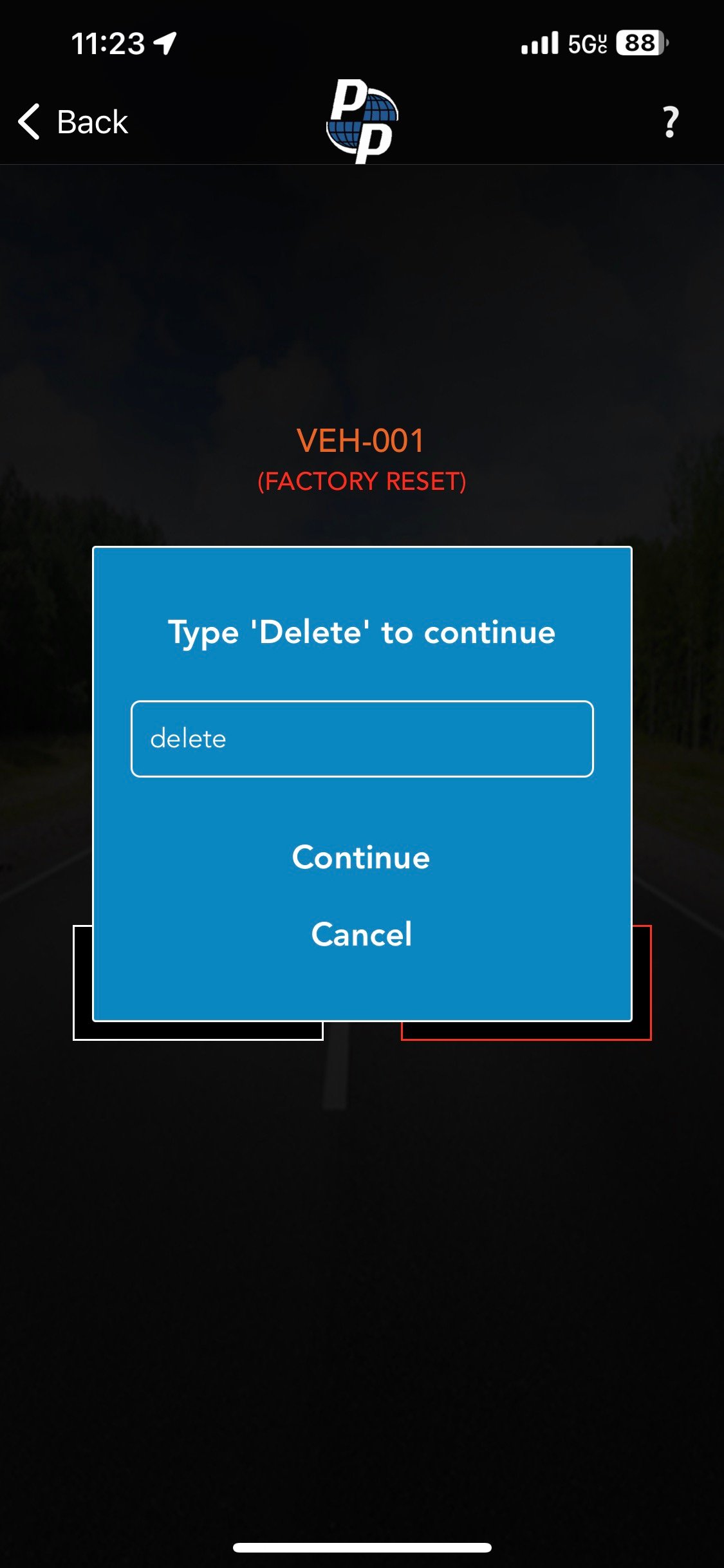
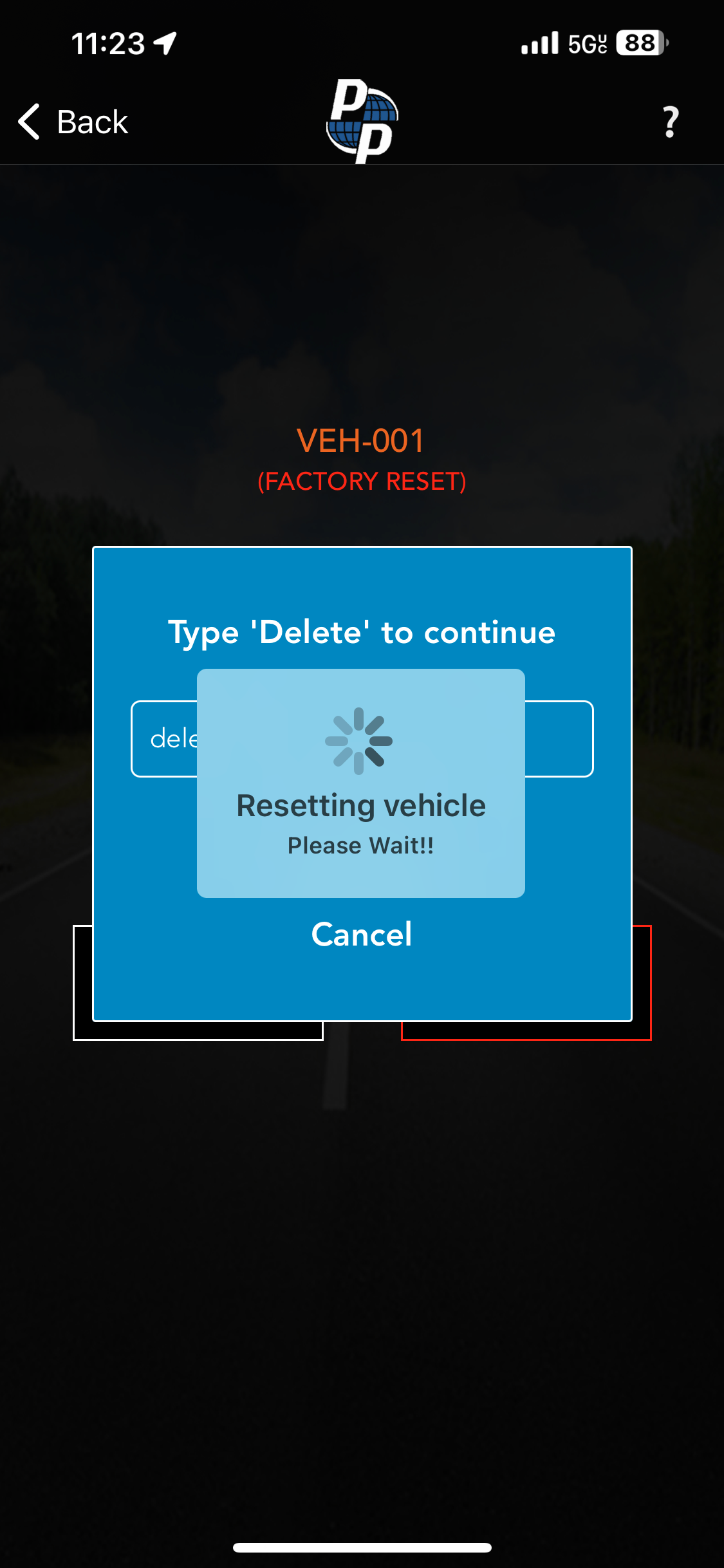
Once you tap the CONFRIM LET’S DO THIS button, you’ll get a pop up. Type ‘Delete‘ in the text field and tap Continue
Note: This Factory Reset will not reset the entire FX unit, just clear the vehicle settings.
How To Add Vehicle
1) Tap the Menu icon in the top right corner. Here you’ll see a list of menu options. Select Add Vehicle from the list of options.
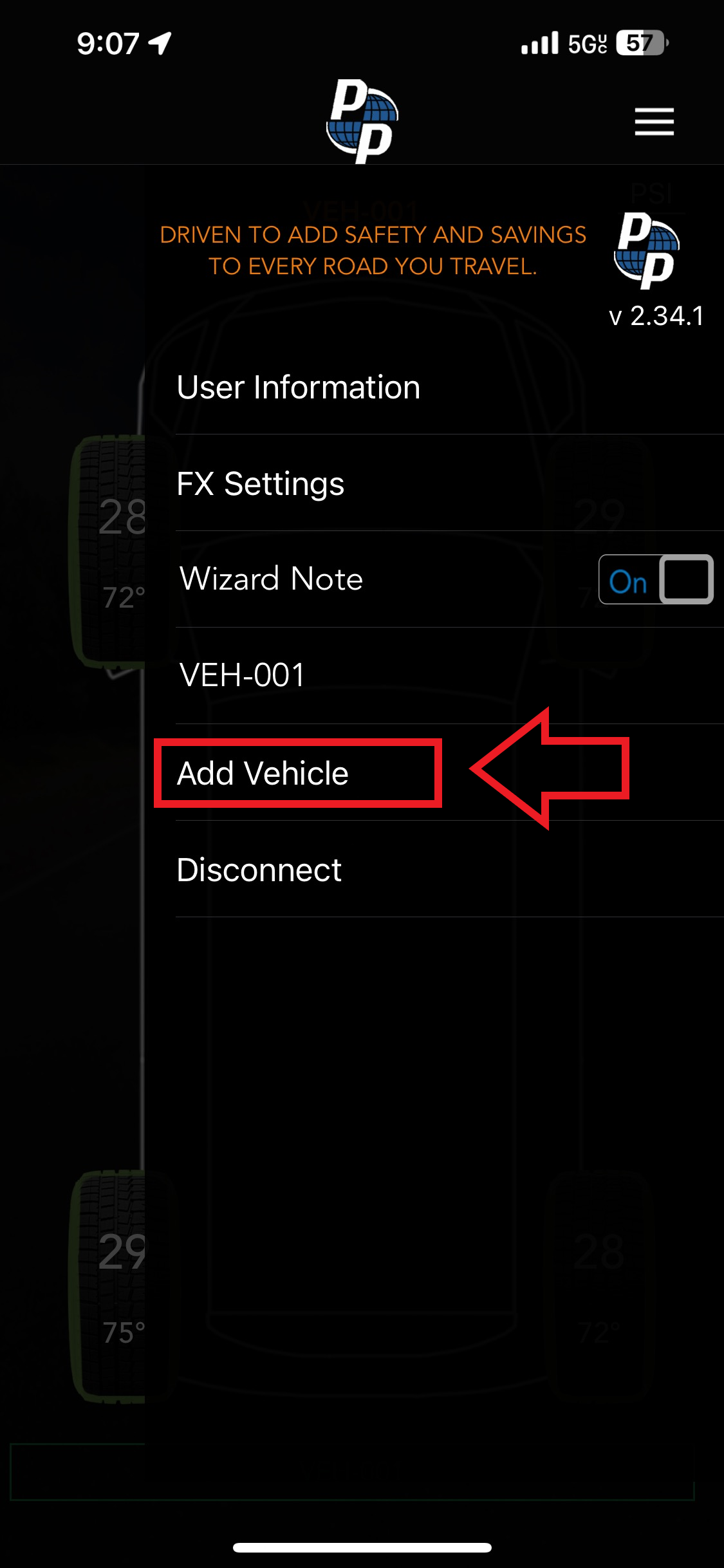
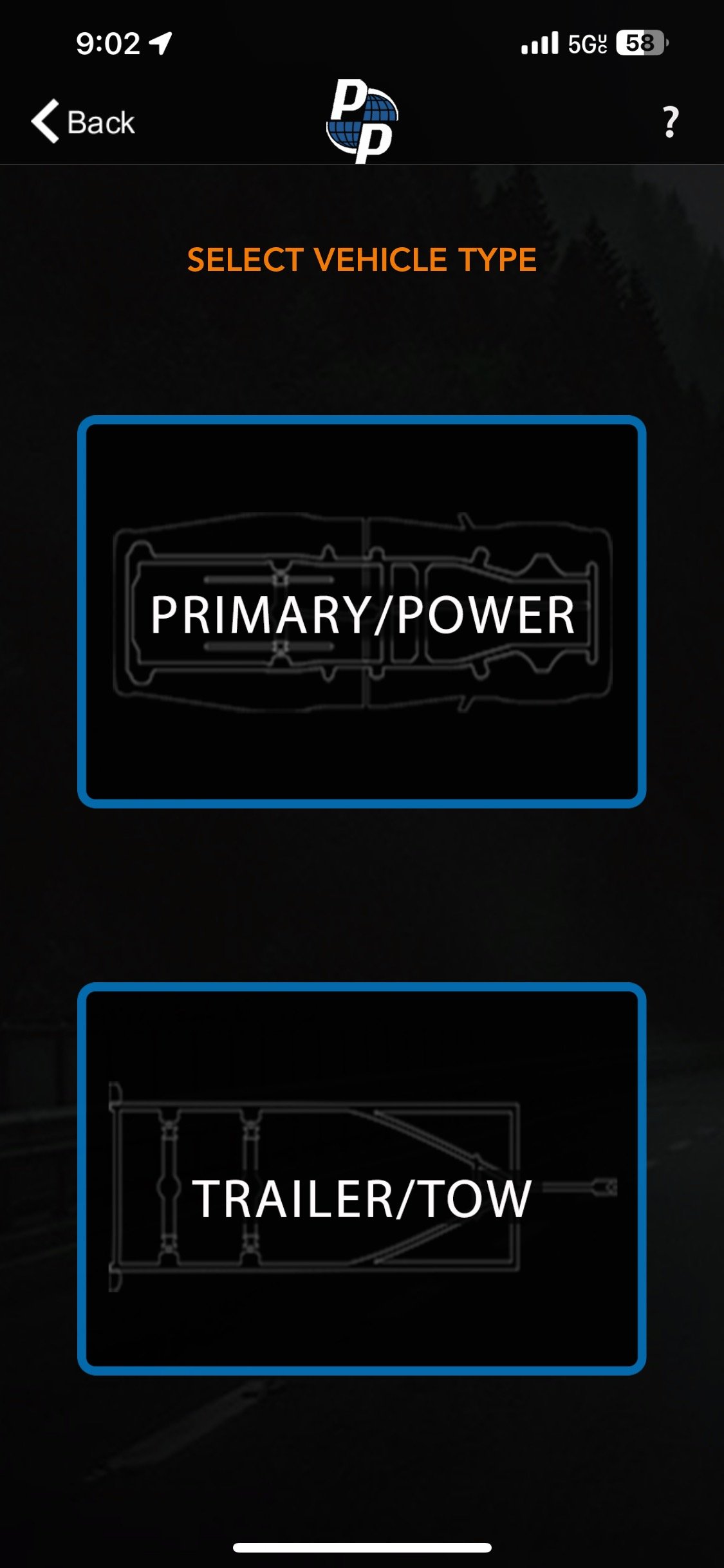
2) Before you can select the Vehicle Type, you’ll need to read the Tire Wizard Note. Tap the Got it after reading. Next select either a Primary/Power or Trailer/Tow vehicle type. Then you’ll select the type of Primary/Tow vehicle you’re using. Tap the green Save button when finished.
Primary/Power:
· Car/SUV – 4 wheel option
· Van/Truck– 4, 6, & 10 Wheel options
· Bus/RV—4, 6, 8 Wheel options
Trailer/Tow:
· 5th Wheel – 2, 4, 6, 8 Wheel options
· Bumper Pull – 2, 4, 6 Wheel options
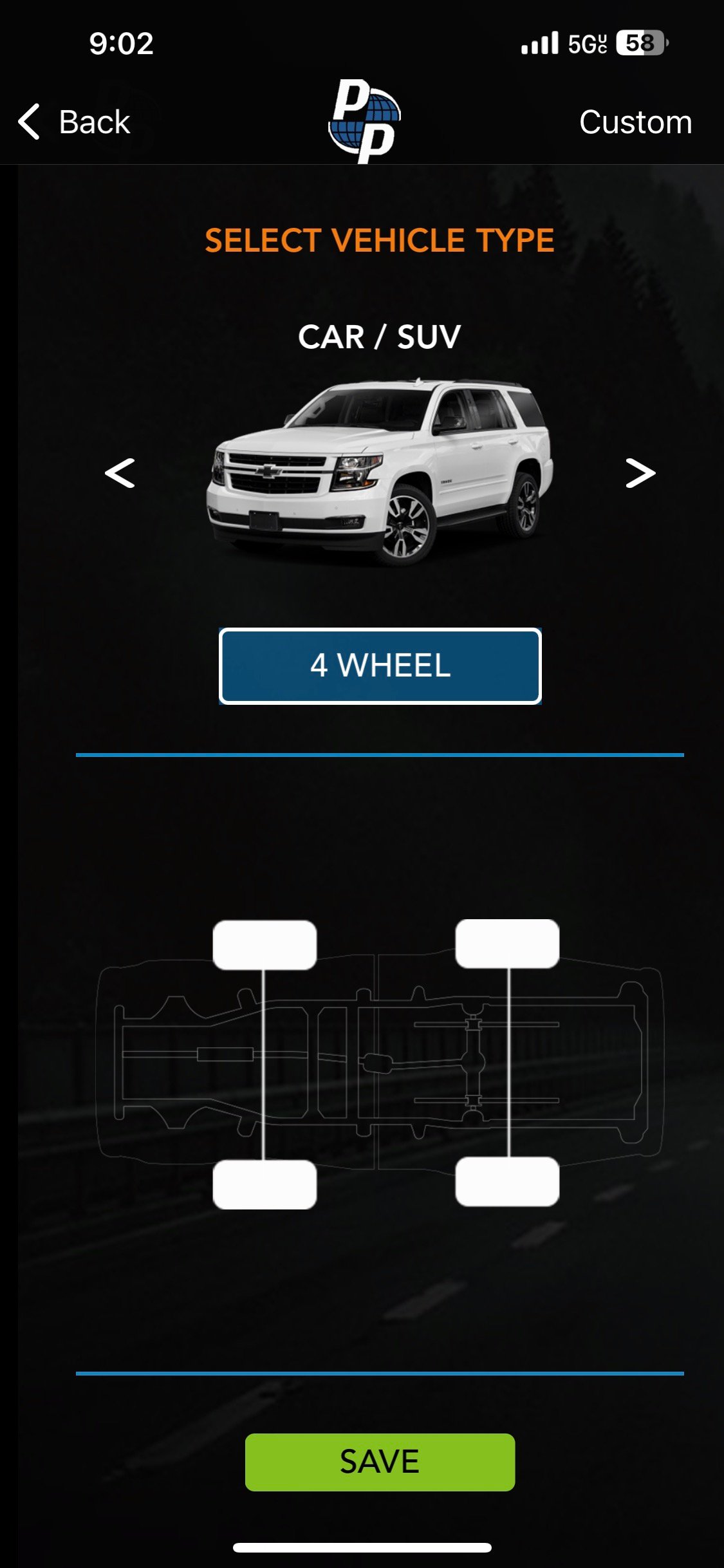
Note: Do not put sensors on tires until directed to do so in the Consumer TPMS application.
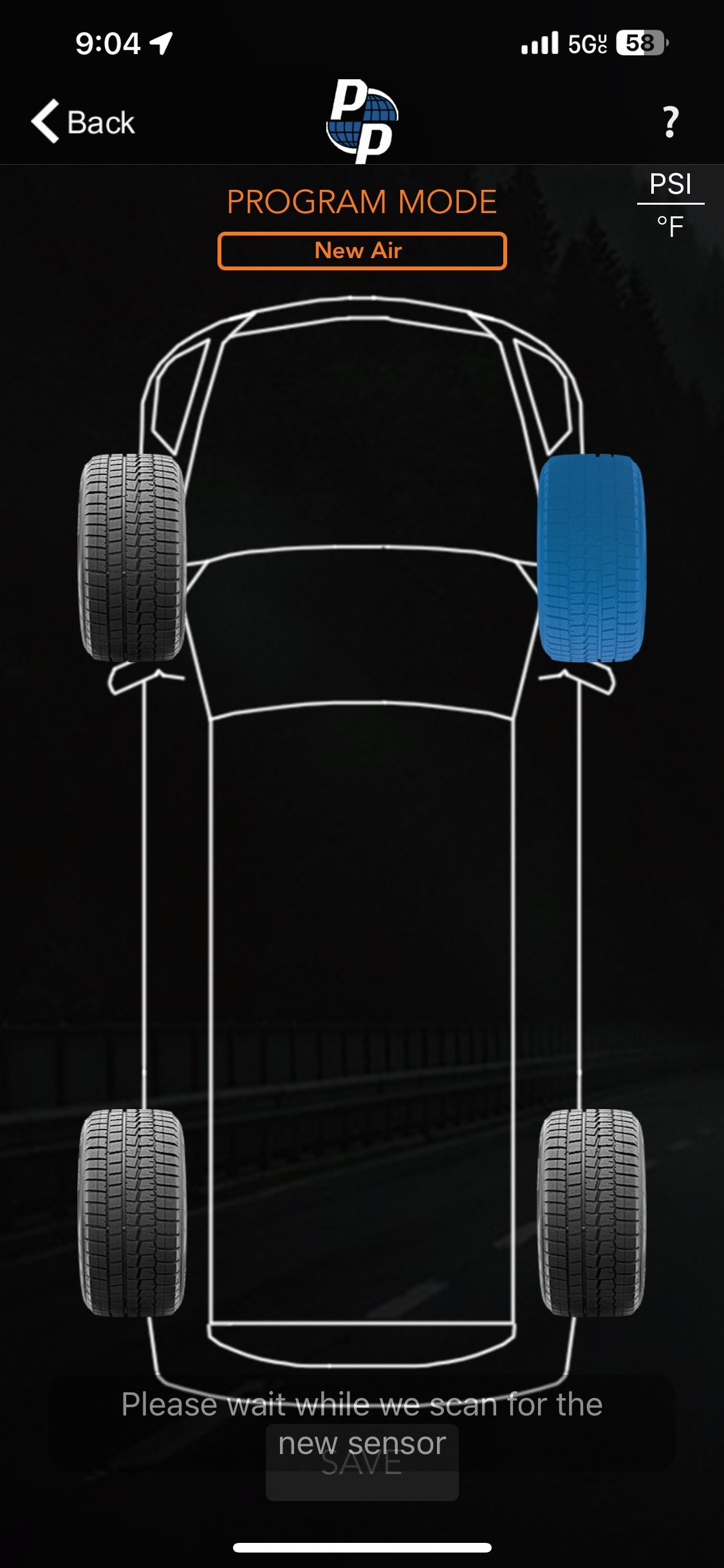
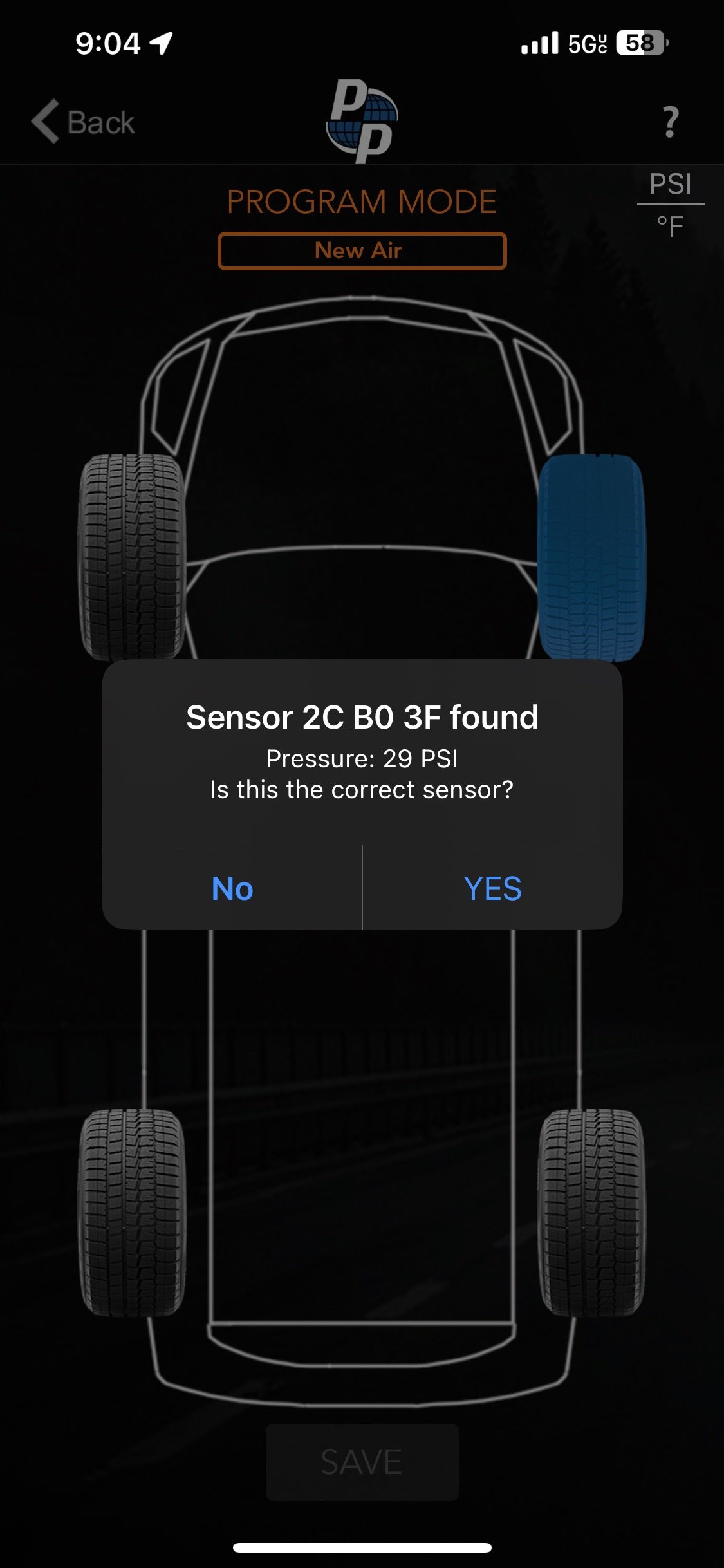
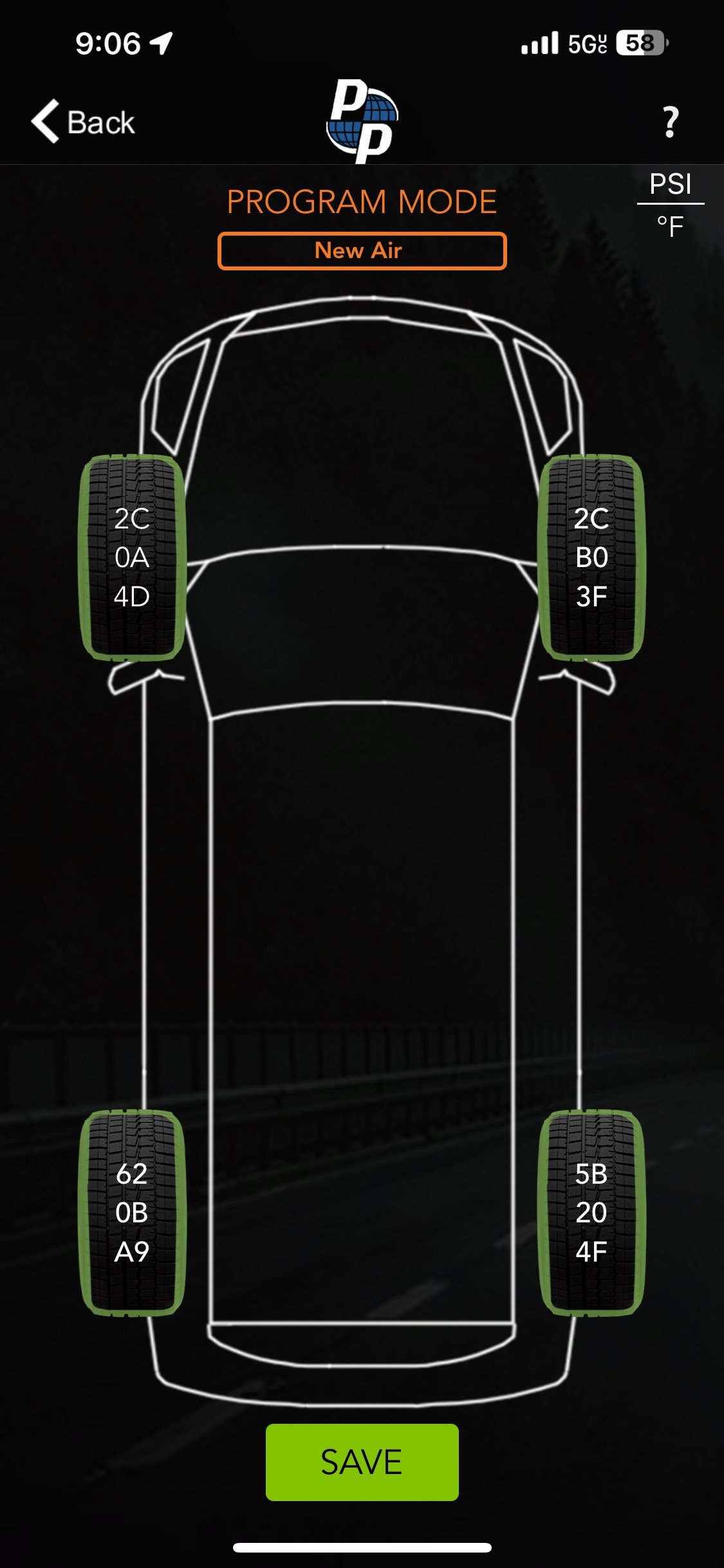
3) After selecting the Vehicle, we’re now going to add the sensors. Before we can add sensors, we’ll need to read the Tire Wizard Note on adding sensors. Tap a tire location you want to put a sensor on. You’ll see ‘Please wait while we scan for a new sensor’ appear at the bottom. Physically install the sensor onto the tire you selected in the app. Once the Pulse FX connects to the sensor, it’ll ask to confirm the sensor, tap Yes.
Repeat this process until all tires are programed and showing a green outline, then tap the green Save button.
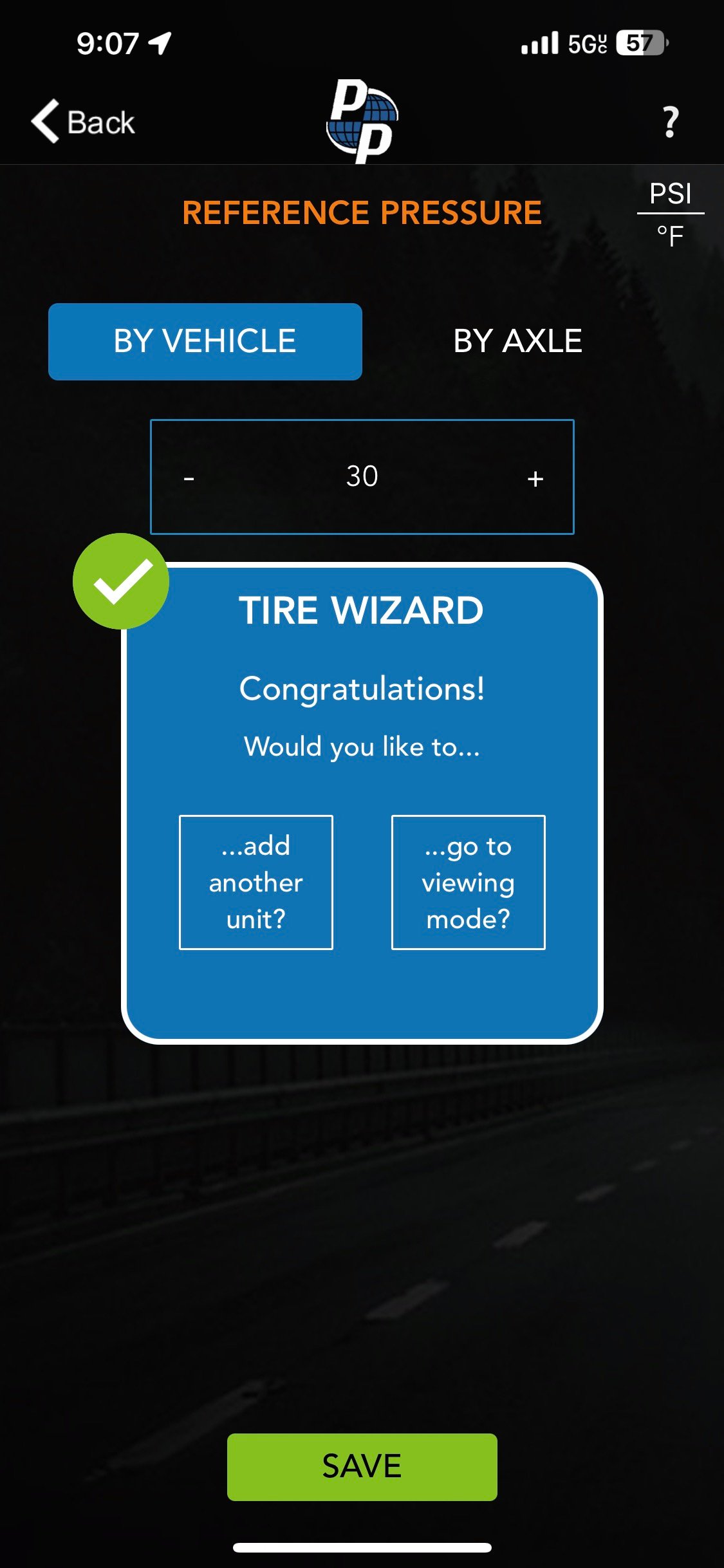
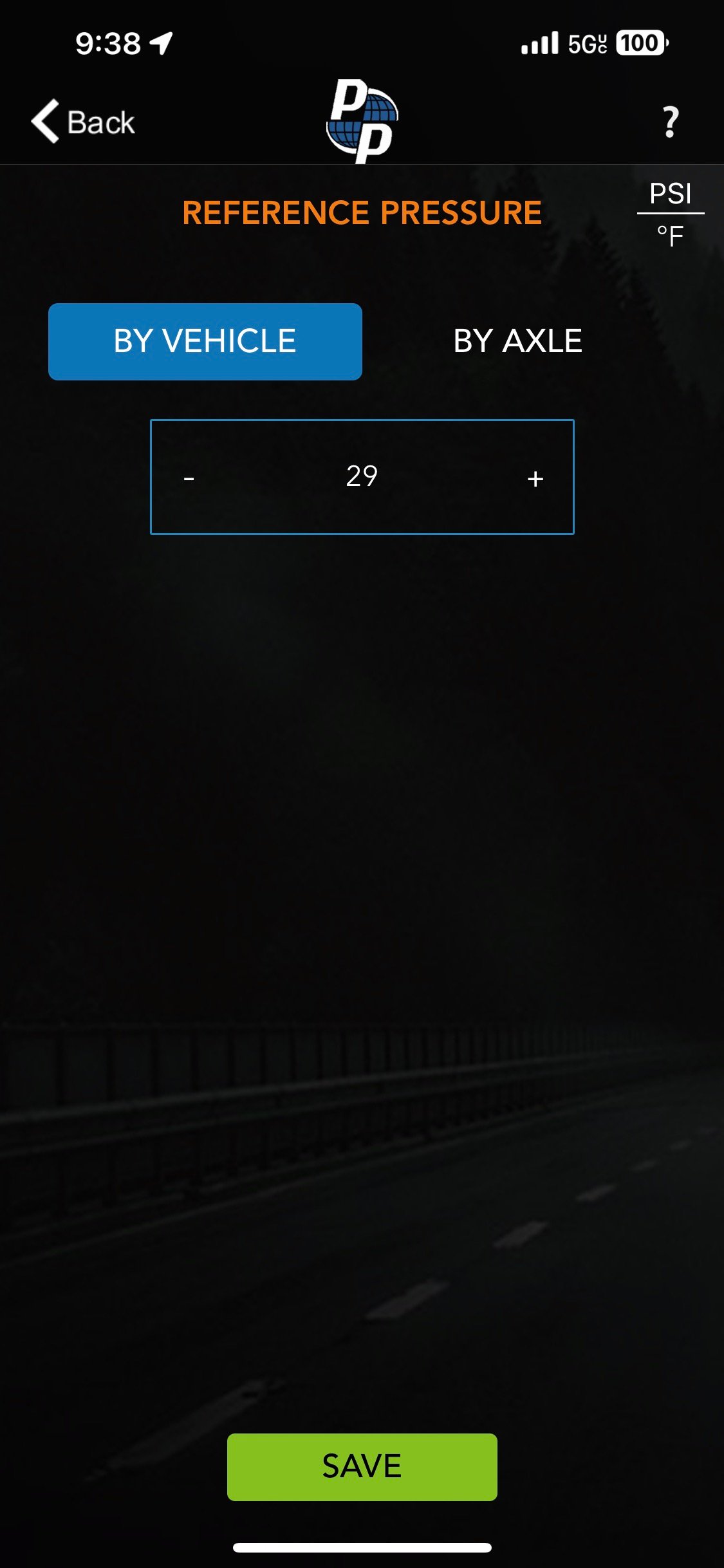
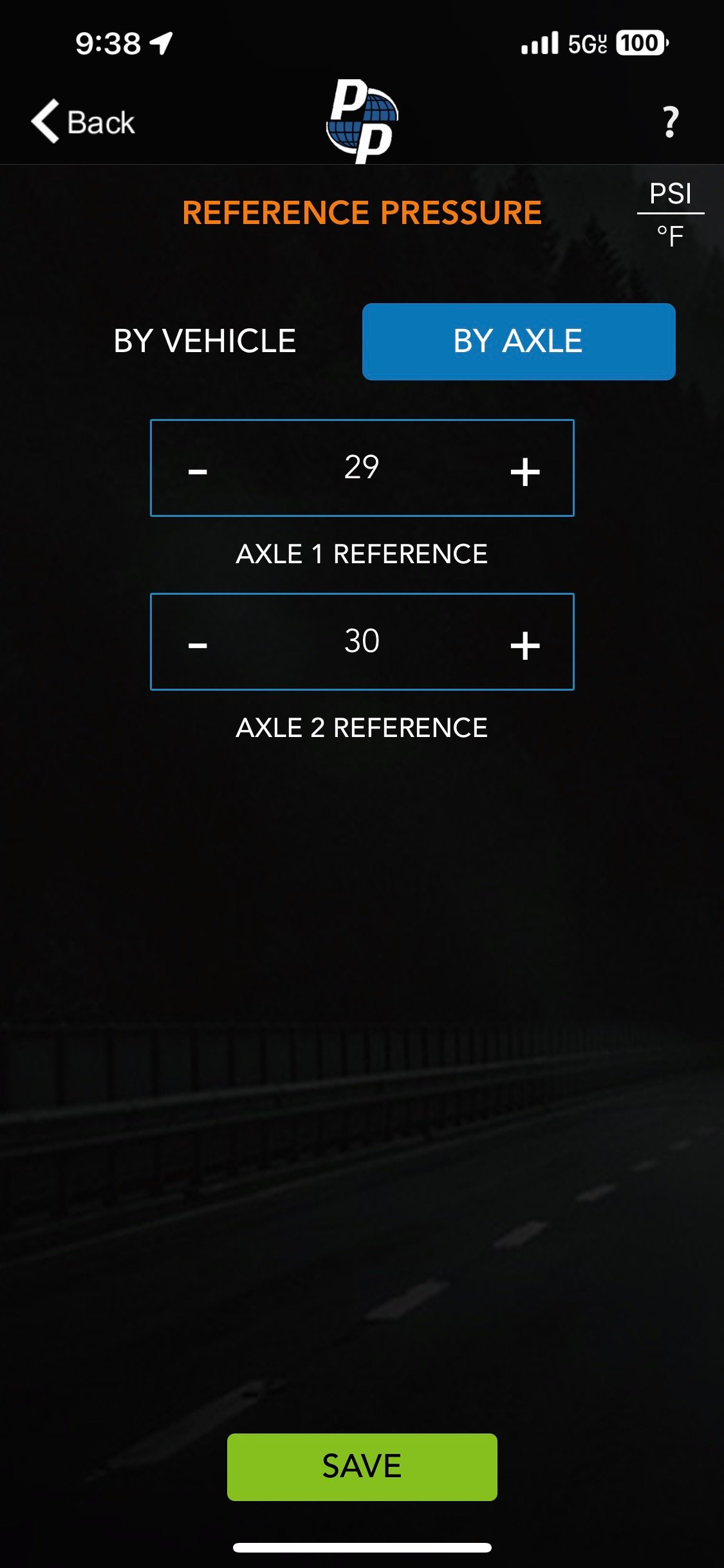
4) Next step is to set the Reference Pressure. The Reference Pressure is used to determine if your tires are under or overinflated. This can be done By Vehicle or By Axel. Use the + and – icons to increase or lower the reference pressure. Once finished, tap the green Save button.
5) After saving, you’ll get a Tire Wizard note asking what you’d like to do next. You can choose if you want to add another unit? or go to viewing mode?
If you choose “add another unit?” it’ll take you back to the Vehicle Type selection.
If you choose “go to viewing mode?” it’ll take you to the Normal viewing mode.