Search for answers or browse our knowledge base.
Pulse FX – Consumer TPMS – How to Add/Remove a Sensor
This article will guide you through the process of deleting the existing sensor and then installing the new sensor on your Pulse FX. Before adding a new sensor to a tire location, it is necessary to remove the existing sensor from the tire.
Note: Do not put new sensors on tires until directed to do so in the Consumer TPMS application.
Note: Leave phone or tablet in the vehicle, near the Pulse FX, as it’s using Bluetooth to connect to the Pulse FX unit.
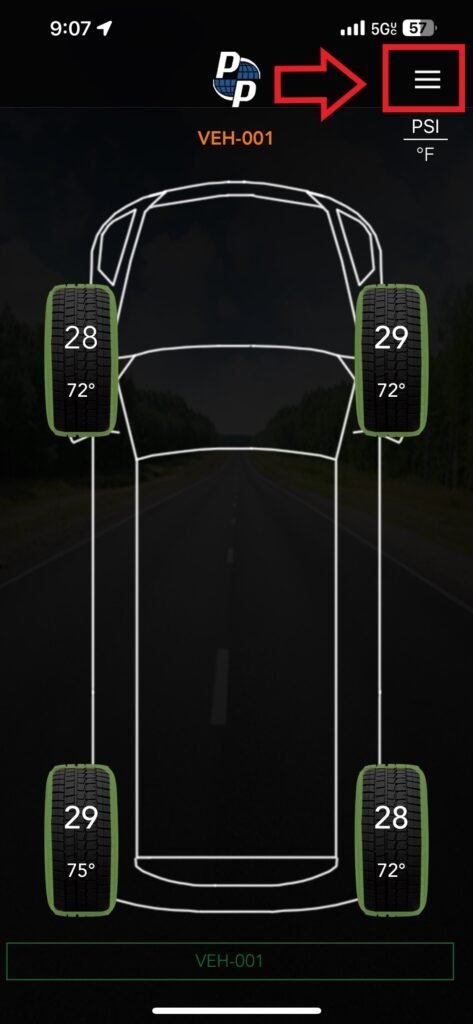
1) Open the Consumer TPMS application on your iPhone or Android device. Once open, you’ll see the layout of your vehicle.
Note: By default, the Consumer TPMS application will automatically log into your account and pair with your Pulse FX. If not, please login to your account and pair with your FX device.
2) Tap the Menu icon located in the top right corner. This will display a list of menu options. From this list, choose your vehicle.
Note: ‘VEH-001’ is the default name assigned to vehicles.
3) After selecting your vehicle, a new menu will appear. Tab Sensors from this menu. A Tire Wizard Note will pop up. Simply tap Got it to acknowledge the Tire Wizard Note.
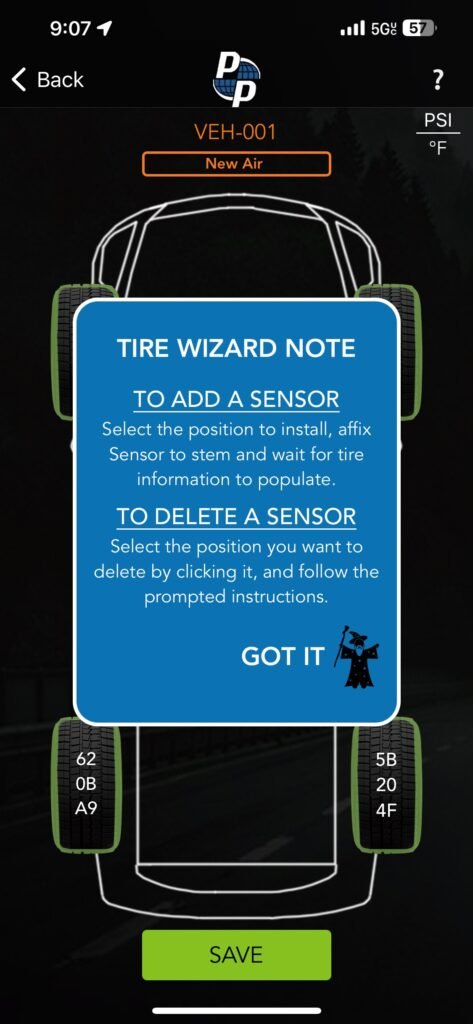
Note: After 3 seconds a ‘Got it’ button will appear at the bottom of the note.
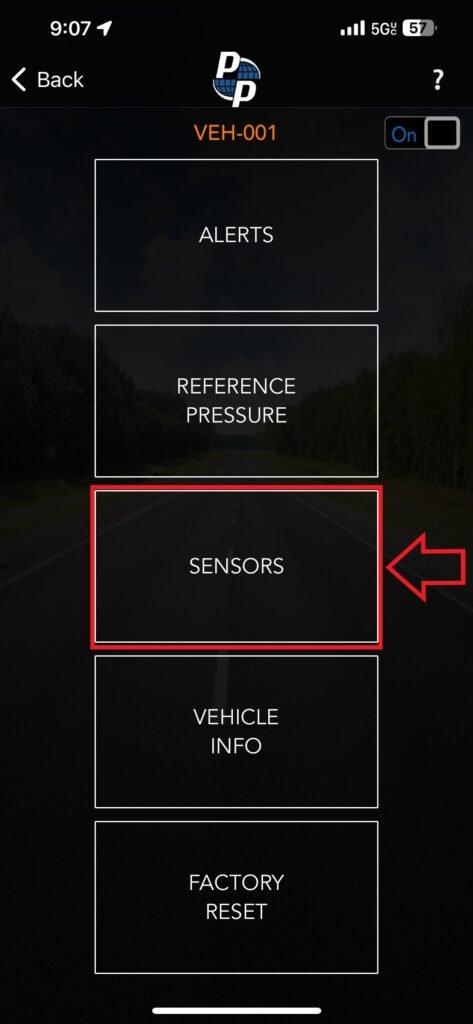
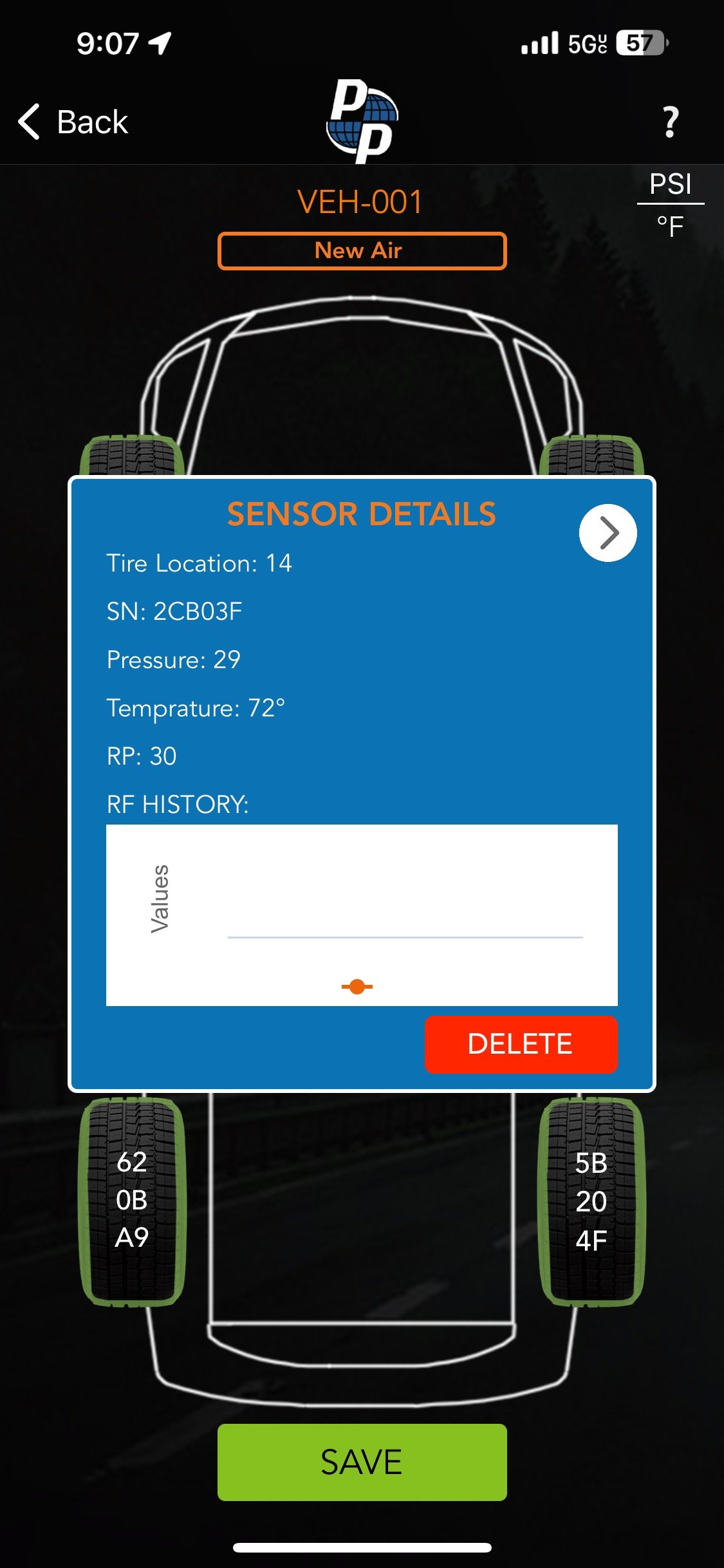
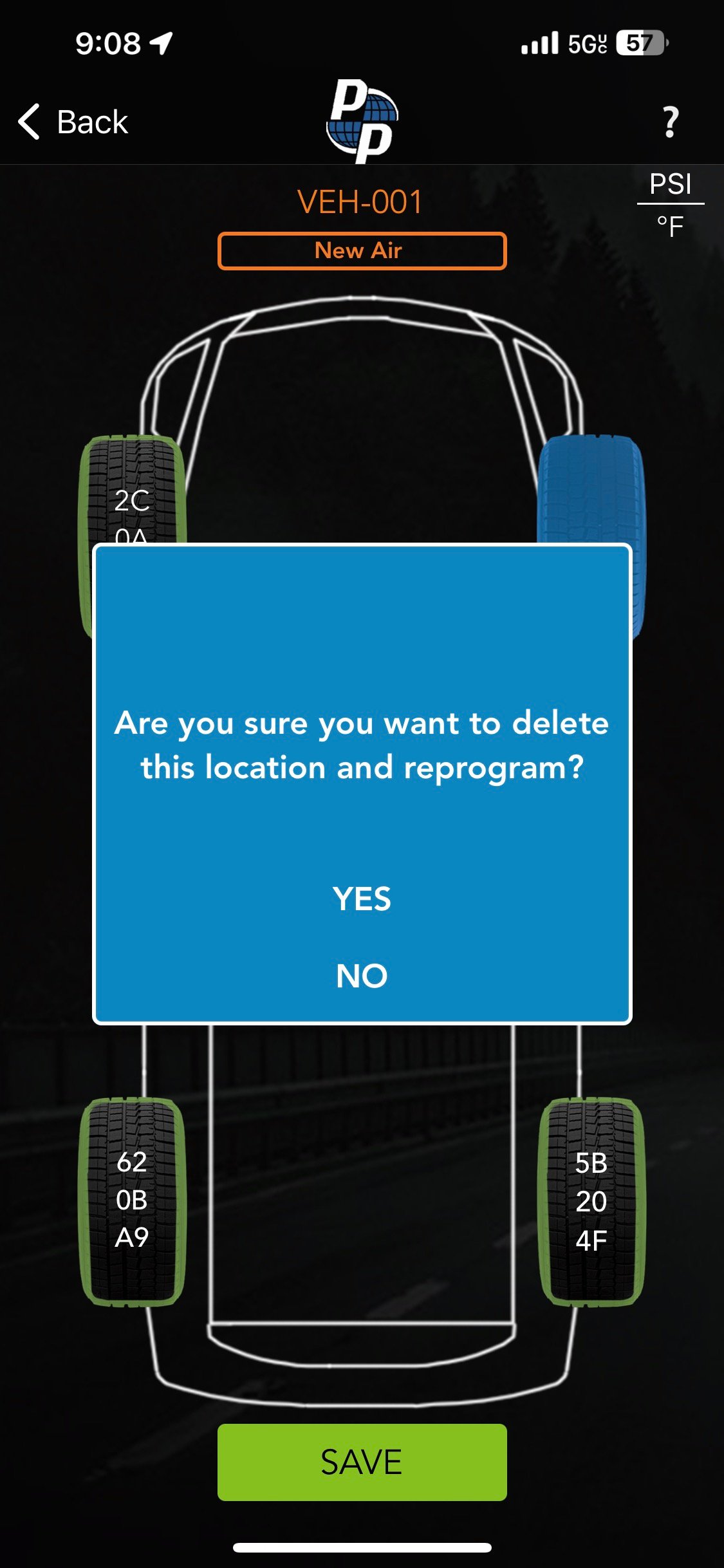
4) Choose the tire location where the sensor needs to be replaced. The Sensor Details screen will appear. On the bottom right of this screen, there is a red Delete button. Tap the Delete button to continue. A confirmation prompt will appear; select Yes to confirm the action.
Note: Leave phone or tablet in the vehicle due to Bluetooth connect with the Pulse FX unit.
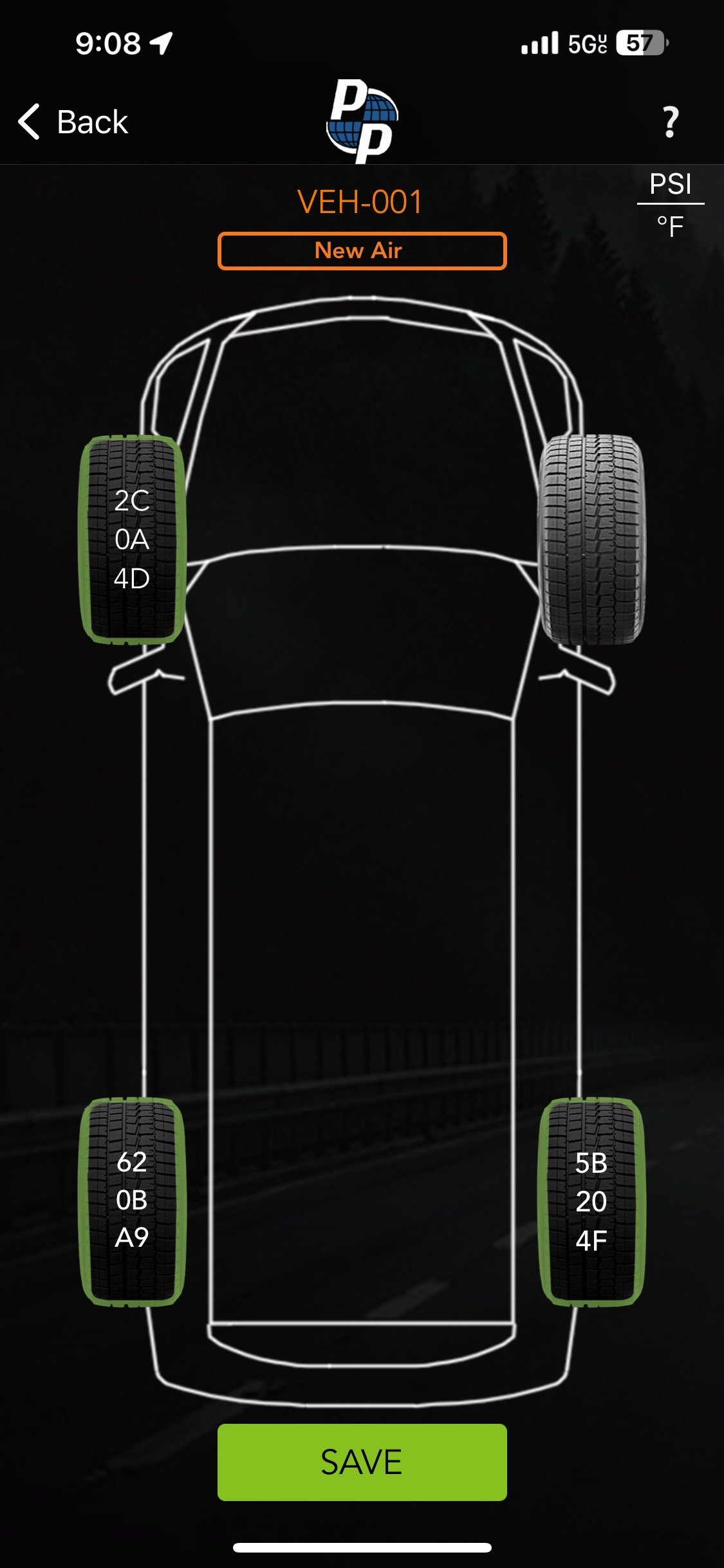
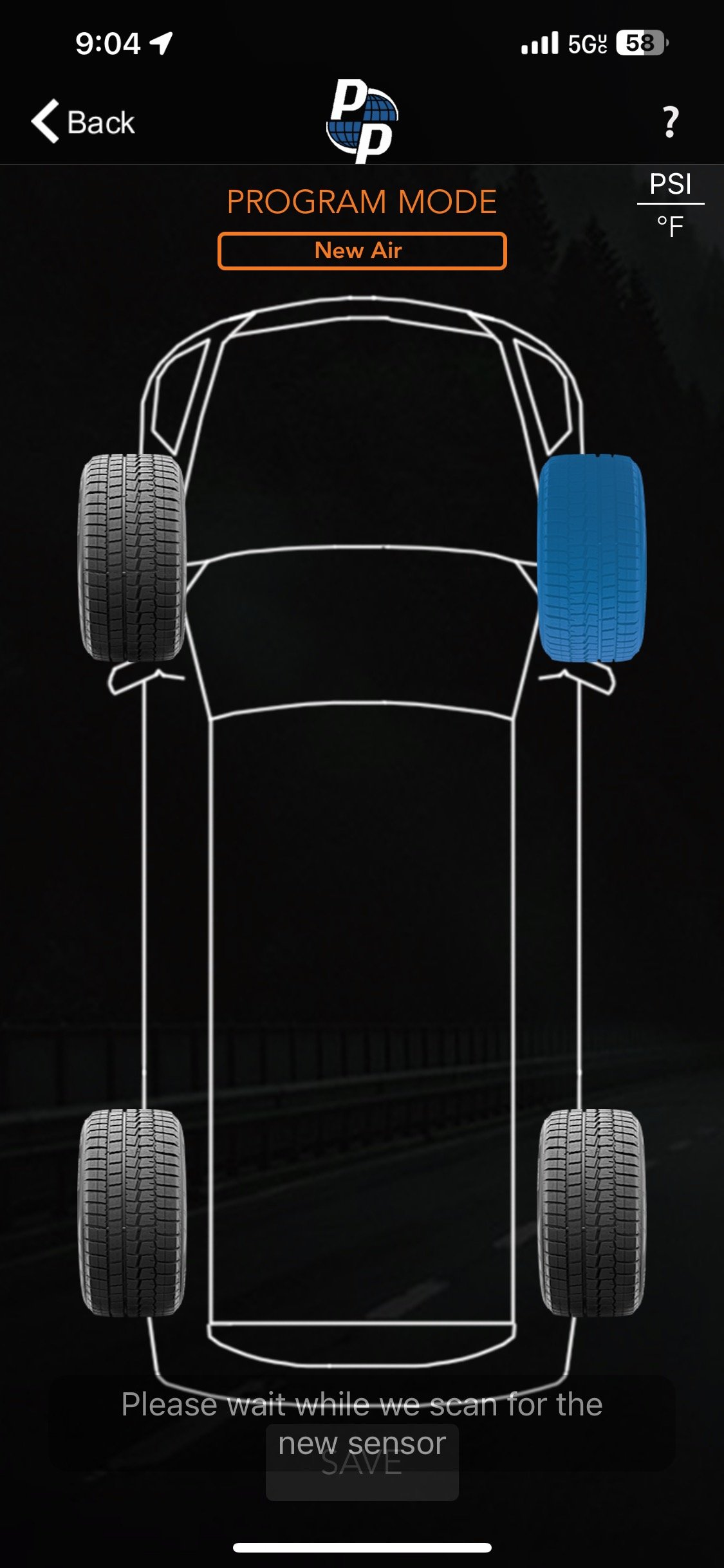
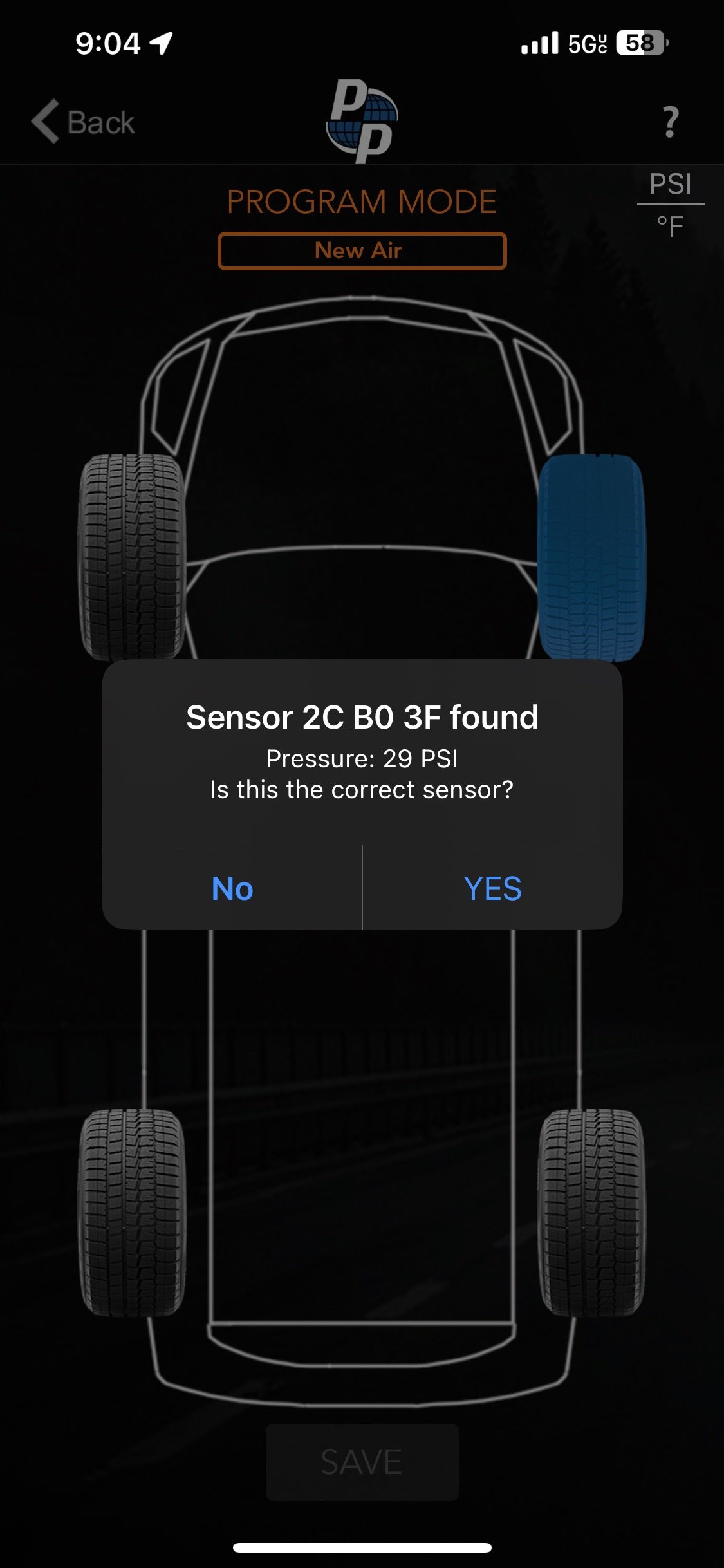
5) After deleting the sensor, the Serial Number will no longer be listed under the tire location. Choose the tire location from which the sensor was removed. A message stating Please wait while we scan for the new sensor will appear at the bottom. Proceed to the tire location outside the vehicle and attach the new sensor to the valve stem. Then return to your phone inside the vehicle. The Consumer TPMS application will display a pop-up to confirm the new sensor.
Note: Repeat steps 5 & 6 if you need to replace more than one sensor.
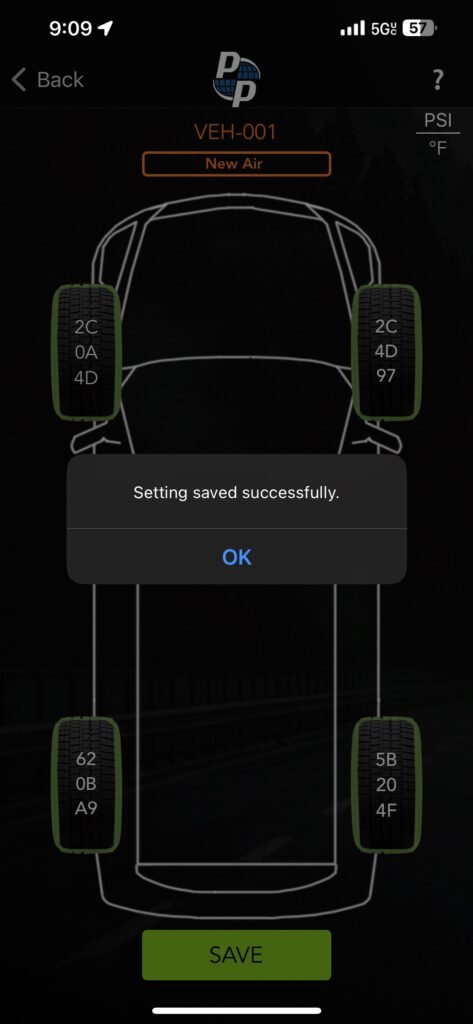
6) Once you remove/add all the sensors you need to replace, you’ll click the green Save button at the bottom. You’ll then get message stating Setting saved successfully. Click the Ok to leave.
Note: Select the ‘Back’ option in top left to get back to Normal Viewing Mode.