Search for answers or browse our knowledge base.
Connect 2.0 – How to Activate a Unit
This article will go over how to Activate Units in Connect 2.0.
Please Note: This is subject to change.
Step 1) Login to Connect 2.0
Step 2) In the right menu, click on Units.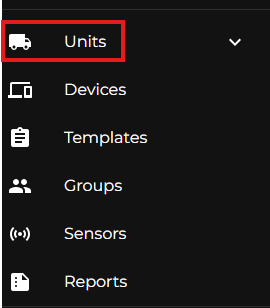
Step 3) Once in the Units section, you’ll see a list of Units already within your Company. On the top left, use the Search bar to search for the Unit you wish to activate.
Step 4) Once you’ve located the Unit you wish to activate, there are 3 vertical dots on the right side, under the Action column. Click on the 3 vertical dots and click Activate.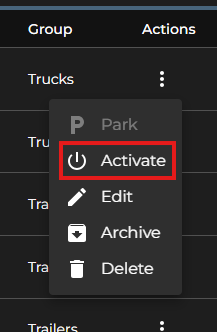
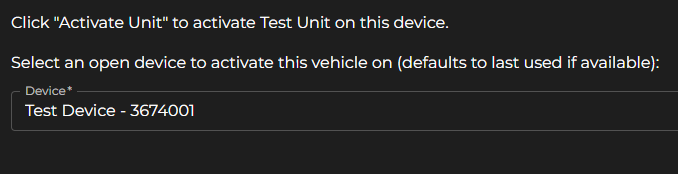
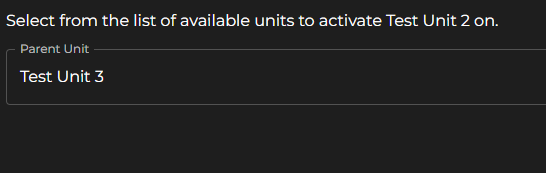
Step 5) Depending on the type of Unit you wish to Activate, you’ll either select which Parent Unit or Device you wish to assign the Unit to or which Device. Click the Activate Unit button to save. If the type is a Vehicle or Other, you’ll assign the Unit to a Device. If the type is a Trailer, you’ll assign it to a Parent Unit.