
Search for answers or browse our knowledge base.
Pulse FX – Consumer TPMS – Creating New Account
This article will guide you through what to anticipate when creating a new account in Consumer TPMS application.
Note: After the first time, by default, the Consumer TPMS application will automatically log into your account and pair with your Pulse FX in the future.
1) Open the Consumer TPMS application on your iPhone or Android device. Once open, you’ll see the layout of your vehicle.
Note: By default, the Consumer TPMS application will automatically log into your account and pair with your Pulse FX. If not, please login to your account and pair with your FX device.
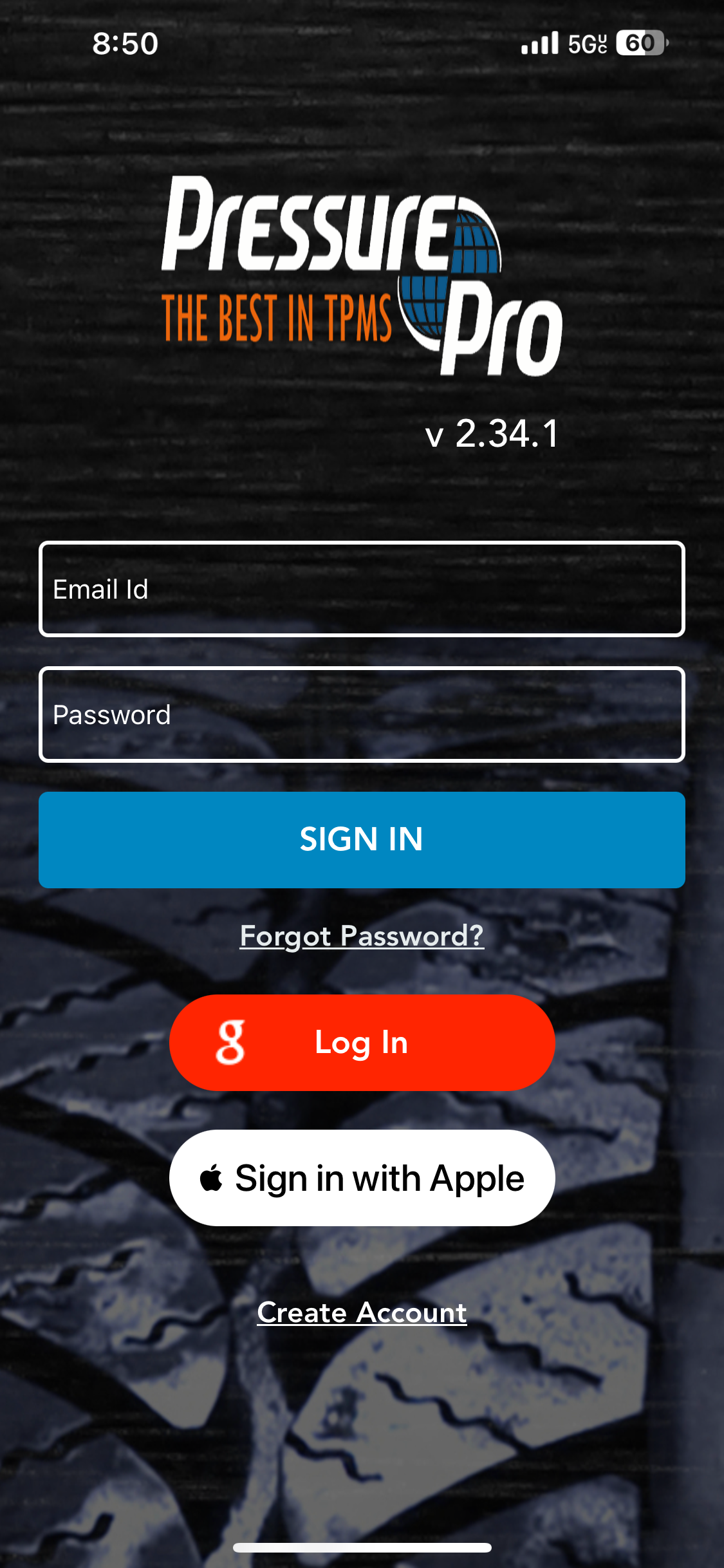
2) As a new User, you’ll need to create an Account to login to the application. We give you a couple options to create an account you can login using Google or Apple to automatic account creation. You can also manually create an account by clicking the Create Account at the bottom. Fill out the form to complete Sign Up.
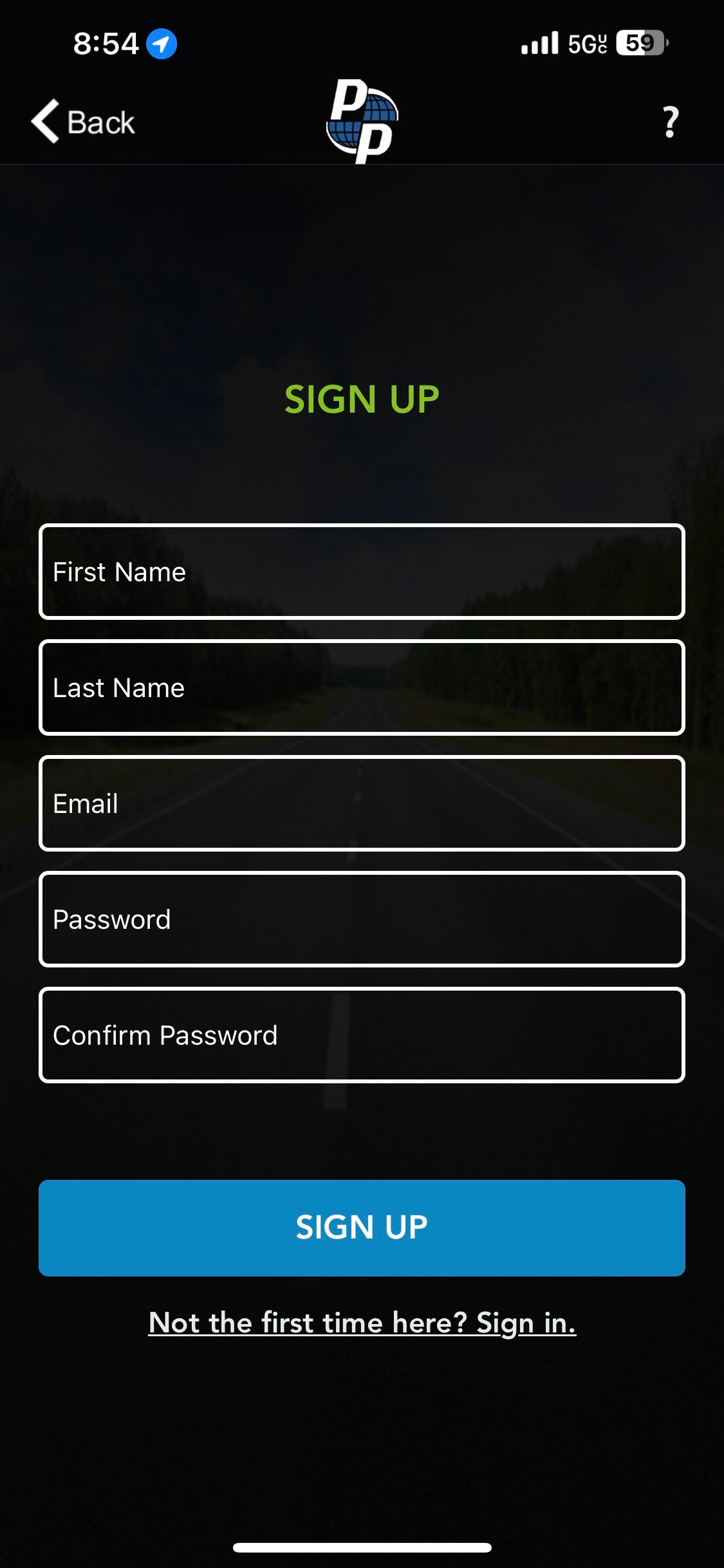
Note: Consumer TPMS application will ask you to accept Permissions for Bluetooth and GPS during account creation.
Login / Sign-up Using Google
If you wish to login to the Consumer TPMS application using Google, we give you the option to create/login using your Google account.
1) Tap the red Log In button to get started.
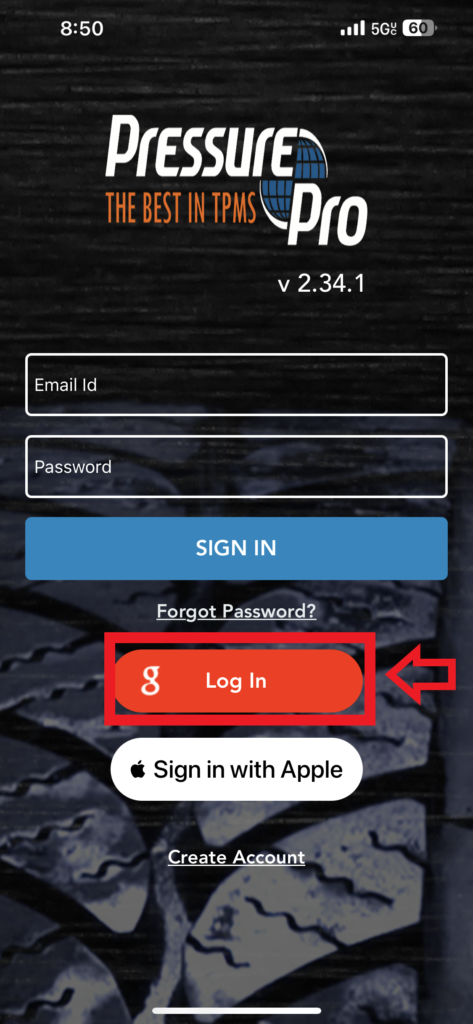
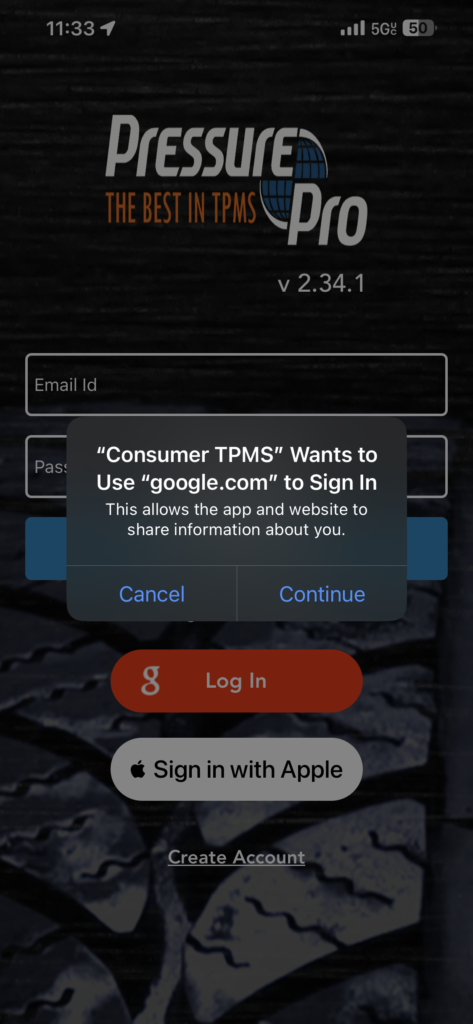
2) You’ll get a pop up stating the following: “Consumer TPMS” Wants to Use “Google.com” to Sign In. This allows the app and website to share information about you.
Tap Continue to proceed
3) If you have any Google accounts tied to your device, you’ll be asked to select one from the list. If you do not have any Google accounts tied to the device, you’ll be prompted to type in your Google credentials.
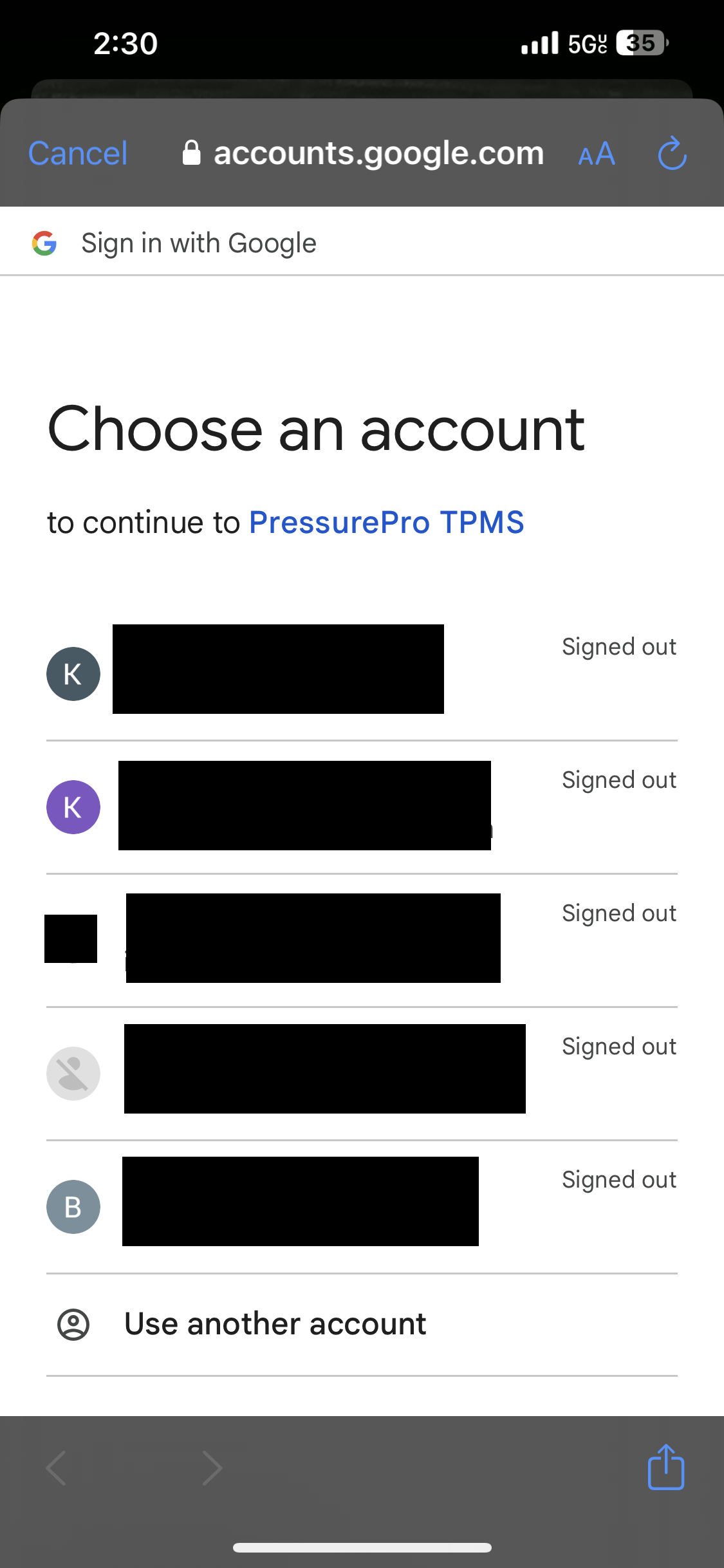
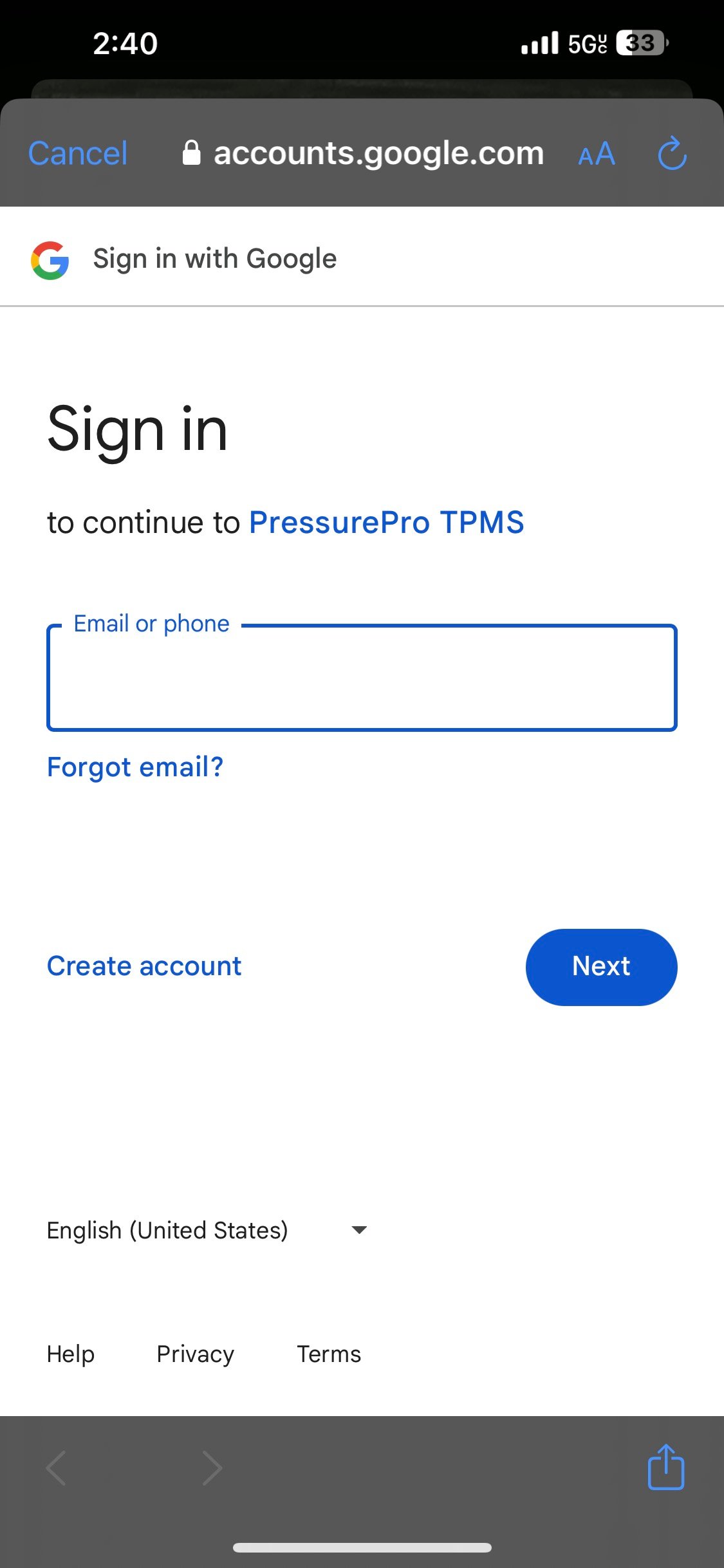
4) After you select or input the Google credentials, the Consumer TPMS application will automatically create an account and log you into the application.
Login / Sign-up Using Apple
If you wish to login to the Consumer TPMS application using Apple, we give you the option to create/login using your Apple account.
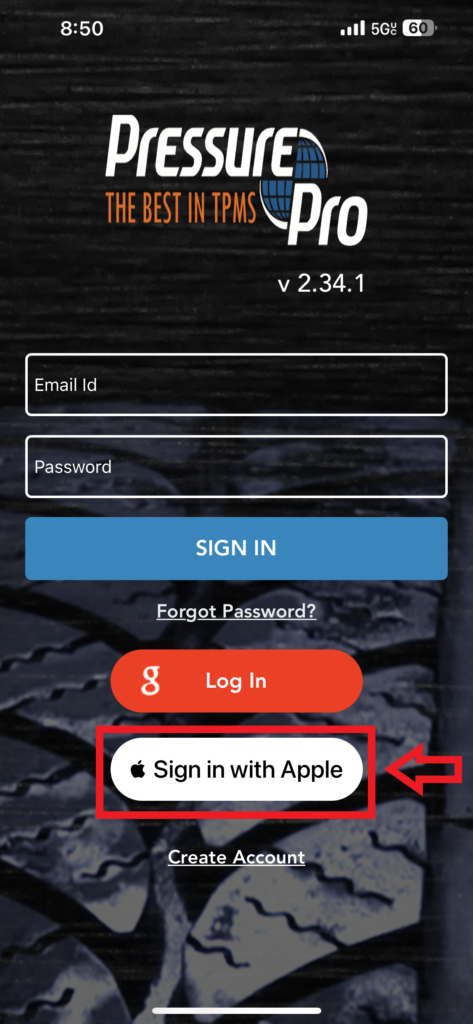
1) Tap the white Sign in with Apple button to get started.
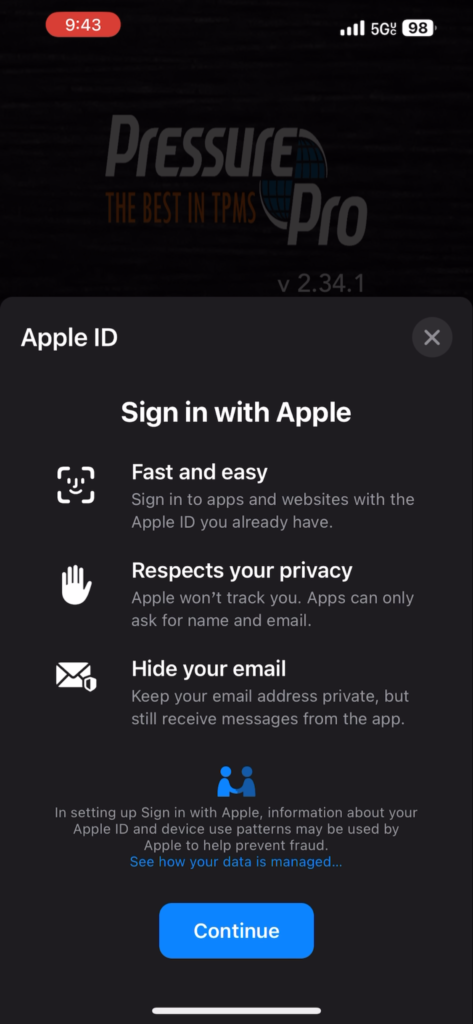
2) You’ll get a pop up stating the benefits of using Apple to login.
Tap the blue Continue button to process
3) If you have any Apple accounts tied to your device, you’ll be asked to select one from the list. If you do not have any Apple accounts tied to the device, you’ll be prompted to type in your Apple credentials.
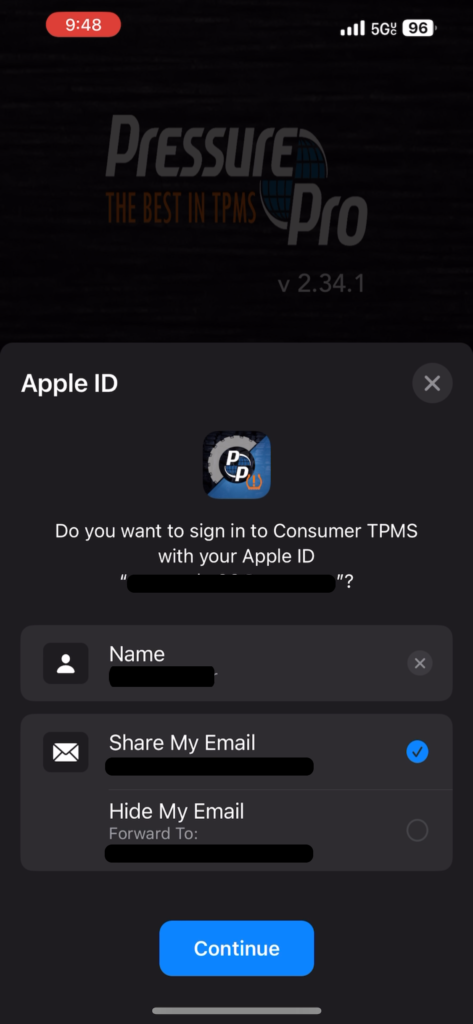
4) After you select or input your Apple credentials, the Consumer TPMS application will automatically create an account and log you into the application.